
Build
Studio
Make launch teasers, walkthroughs and shorts. An AI CLI writes the scenario from your brief, animates the scenes and gives them a voice, and every edit is kept.
A video starts as a scenario
Studio is where you make videos: a launch teaser, a walkthrough of a new feature, a short for social media, or a video that belongs to no project at all. Pick what it belongs to, its language and its format (landscape, vertical, square or portrait), then describe in your own words who it is for and what it should say.
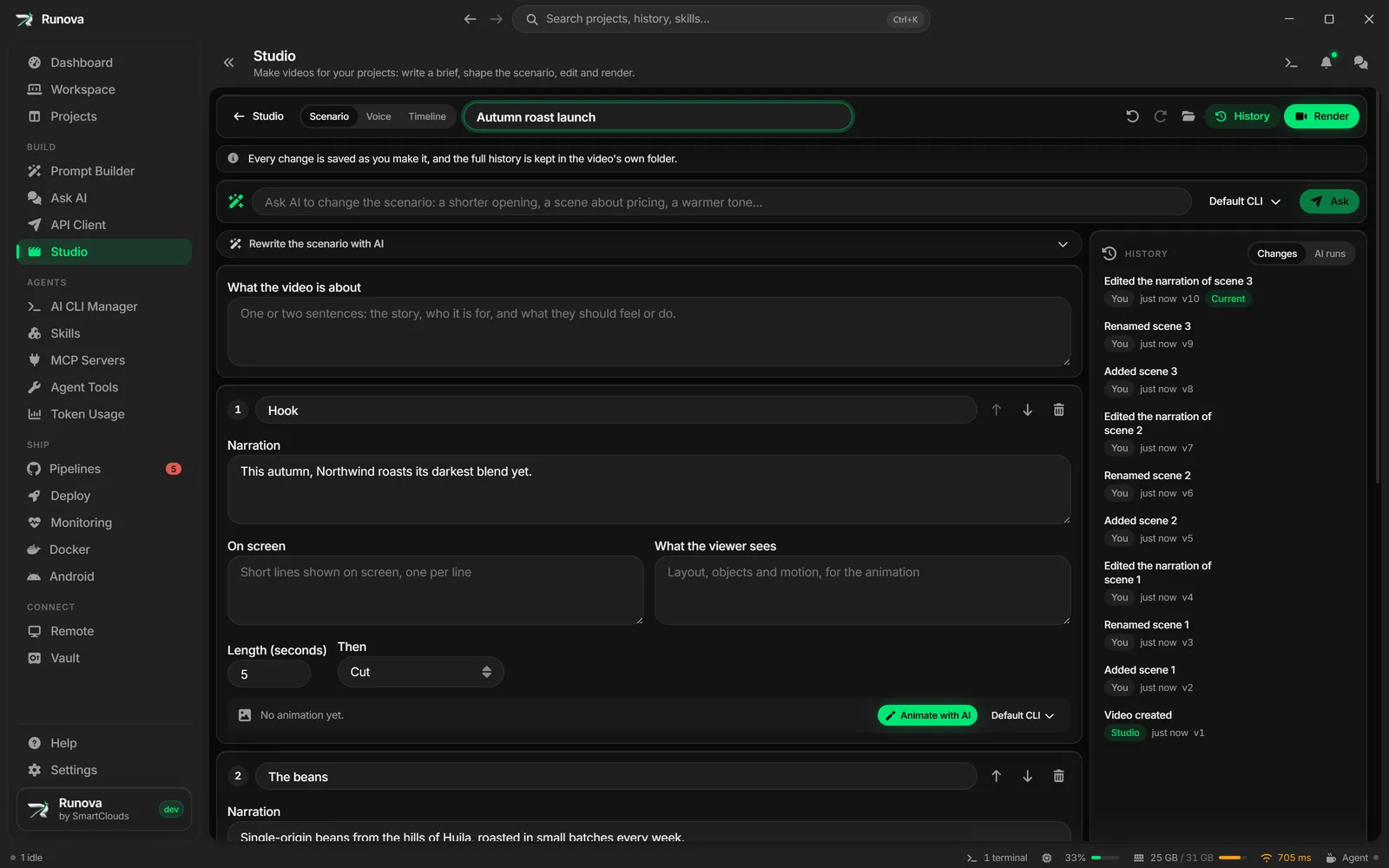
An AI CLI already on your computer (Claude Code, Codex, Gemini, Grok, Cursor or OpenCode) writes the scenario with the model and effort you choose: a list of scenes, each with its narration, the lines shown on screen and what the viewer sees. If the answer does not fit, Studio sends it back with the exact problems.
Edit by hand or by asking
Change any scene yourself, reorder scenes, or type what you want changed, such as “make the opening shorter”. The AI answers with a proposal that spells out every change before and after. Apply it as a single step, or discard it.
Animate the scenes
Animate with AI writes each scene’s motion graphics as a small web page, in one of fifteen styles if you picked one. Before Studio uses a scene, it checks it in a hidden window: it must load, draw on every frame, draw the same picture for the same moment, and make no errors. A scene that fails goes back to the AI with the problems. You can preview a scene, ask for a change, or open its code and edit it yourself.
Scenes run with no internet access and cannot reach Runova or your files. If a project’s scenes need files from a host of yours, you can allow that one host over https.
Give it a voice
Speak every scene with OpenAI, Google Gemini, ElevenLabs or Azure Speech, record a scene with your own microphone, or use voices that run on your computer with no connection at all. Studio shows the price of the text before you speak, writes captions where the words are spoken, and lowers the music under the voice.
Nothing is lost
Every video keeps its edits and full history in a folder you choose, always outside the project’s source. Each change is one step you can undo, nothing in the history is ever deleted, and you can go back to any earlier version.