
Deploy
Deploy alerts on Telegram
Have a server send its important events and errors, such as a failed backup or a container that keeps restarting, to a person or group on Telegram, set up from the server's Notifications section.
Read about this part of Runova on the Ship page.
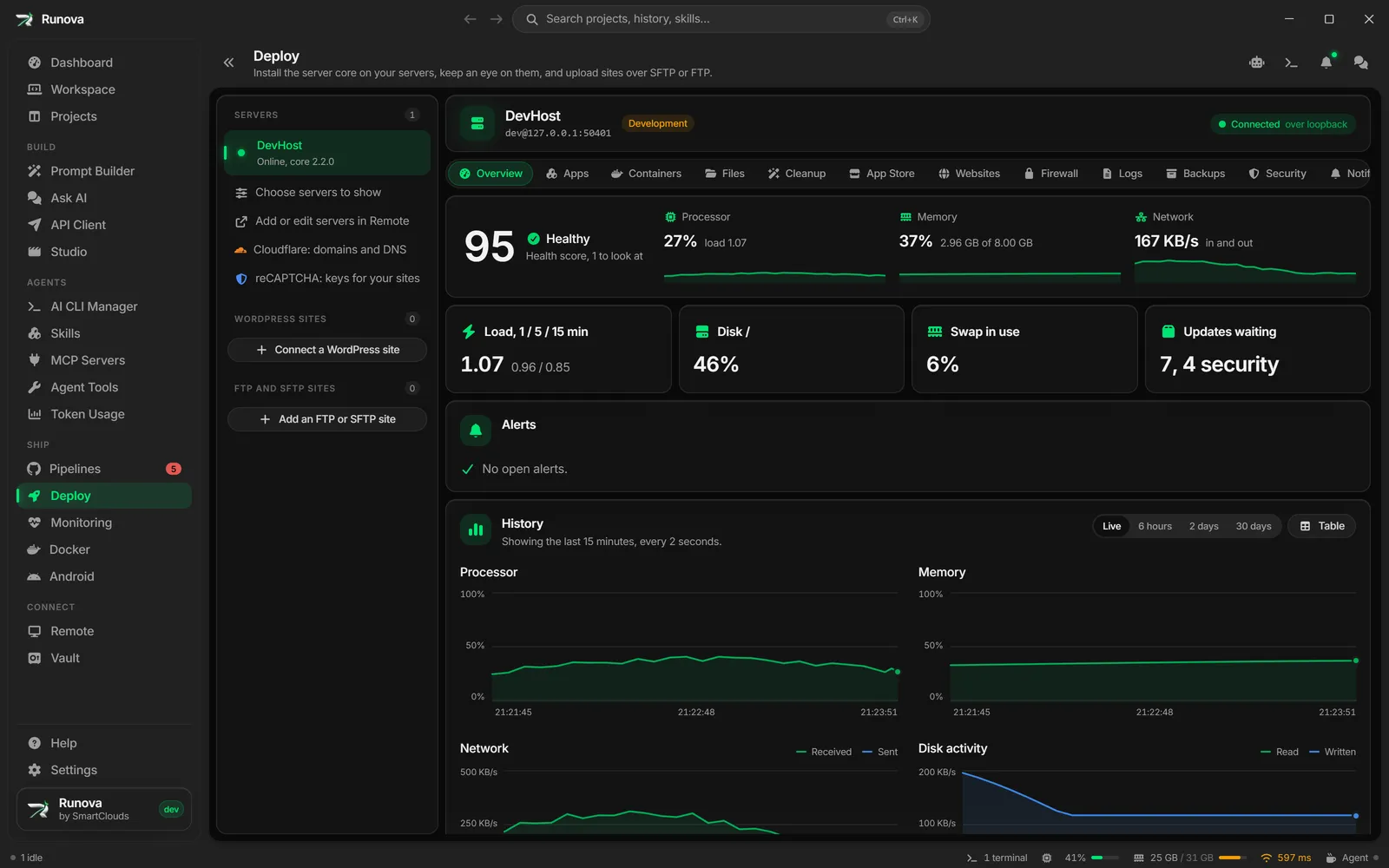
Telegram alerts make a server tell you on Telegram when something on it needs a look: a backup that failed, a container that keeps restarting, a disk that is filling up, a deploy that failed. The server’s core sends the messages itself, so they arrive while Runova is closed and your computer is off.
Each server has its own setup, in the server’s Notifications section under Deploy. You choose the bot, the person or group that gets the messages, the name the server goes by in them, and which alerts to send.
This is different from the Telegram bot under Settings, Notifications, which tells you about your agents on this computer. See Notifications and Telegram.
Where to find it
Open Deploy, pick the server, then the Notifications section (the bell, after Security).
Set it up
You need to be an Owner on the server. Admins can see how it stands and send a test message, but not change it.
- Make a bot. In Telegram, open @BotFather, send
/newbotand answer its two questions (a display name and a user name ending inbot). BotFather answers with the bot token, shaped like123456789:AAH.... Keep it secret: anyone with it can send as the bot. - Pick the chat.
- For yourself: open your new bot in Telegram and send it any message.
- For a group: add the bot to the group and send a message in the group.
- For a channel: add the bot to the channel as an admin and use the channel’s
@nameas the chat ID.
- In Runova, paste the token into Bot token and press Detect. The chat that last wrote to the bot fills in Chat ID. You can also type it: a number such as
123456789for a person,-1001234567890for a group. - Check Server name. It starts every message, so you can tell your servers apart. It is filled in with the name you gave the server in Runova; empty means the machine’s own name.
- Choose the Alerts to send. All of them are on to begin with.
- Press Turn on Telegram alerts. Runova asks for your password again if you have not confirmed it in the last 10 minutes. The core starts sending at once, with no restart.
- Press Send test message to check that the message arrives.
What gets sent
| Alert | When |
|---|---|
| Backup failed | A backup plan could not make its backup (critical), or a destination did not take it after its retries (warning). |
| Container keeps restarting | A container exited on its own three times within ten minutes. Stopping or killing it yourself does not count. |
| Job failed | A deploy, an image pull, a package upgrade or another job failed. |
| Disk filling up | A disk is over 90% full (warning) or over 95% (critical). |
| Certificate did not renew | A website certificate could not be renewed. |
| Reboot needed | Installed updates are waiting for a restart. |
| Firewall rolled back | A firewall change was not confirmed in time, so the old rules are back. |
| Firewall rollback failed | Putting the old firewall rules back did not work. |
| Cloudflare lock refresh failed | Cloudflare’s address ranges could not be fetched or applied. |
A message looks like this:
🔴 Critical on prod-1: A backup failed
Nightly: The backup could not be made: the volume shop_db could not be read.
You get one message when a problem starts and one more if it gets worse (a warning that turns critical). The same problem happening again while it is still open is not sent again. With Also tell me when a problem clears on, a short note follows when it is fixed:
✅ Resolved on prod-1: A backup failedChange, pause or remove it
- Change the chat, the name or the alerts in Settings and press Save changes. Leave Bot token empty to keep the token the server already has.
- Pause with the Send alerts to Telegram switch. The setup is kept, nothing is sent.
- Remove forgets the token and stops sending. Messages already in the chat stay.
Privacy and safety
- The token is sealed on the server and never shown again, in the app or anywhere else. Only Detect sends it from your computer to Telegram once, to find the chat.
- Passwords, tokens and keys are removed from every alert before it is stored or sent.
- Every change and test is in the server’s audit trail, with the chat but never the token.
When something goes wrong
The status card shows the last error until a message goes through again:
- Telegram did not accept the bot token: copy it again from BotFather. If you revoked it, use the new one.
- Telegram cannot find that chat: send the bot a message (or add it to the group), then try again.
- The bot was blocked in that chat: unblock it in Telegram.
- The bot is not a member of that group or channel: add it again. A channel needs it as an admin.
- This server runs an older core: update the core from the Overview, then open Notifications again.
The server needs to reach api.telegram.org over HTTPS. A firewall that blocks outgoing traffic stops the messages.