
Deploy
Deploy AI assistant and logs
Use the Deploy AI to diagnose a server with commands you approve, read every log in one viewer, and see what is broken right now in the Problems feed.
Read about this part of Runova on the Ship page.
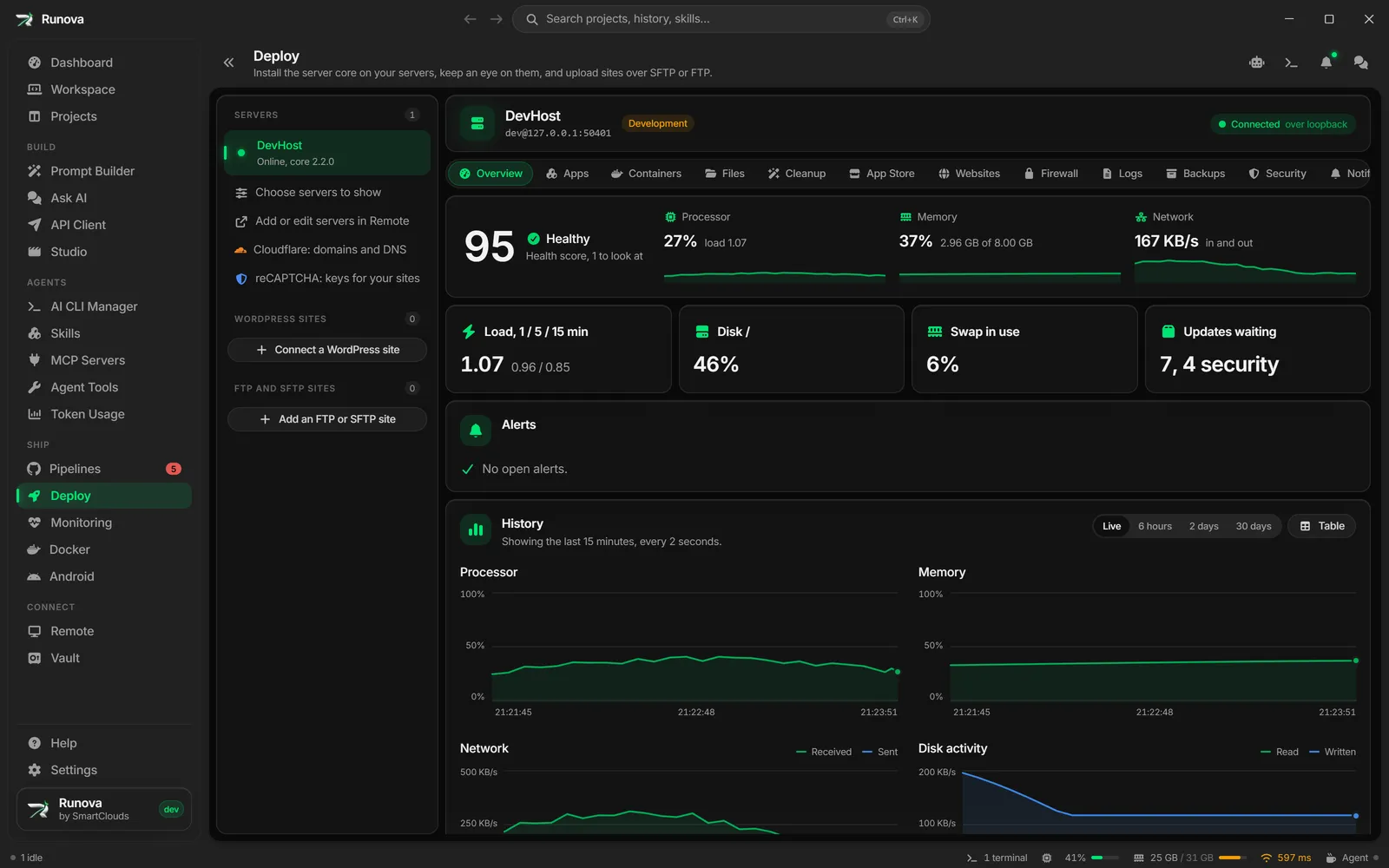
The Logs section of a server’s page in Deploy has two tabs: Problems, a feed of what is broken on the server right now, and Log viewer, one place to read container, app, systemd and website logs live. The Deploy AI is a drawer that works with both. It looks at a problem or a log, proposes commands to run on the server, and runs each one only after you approve it (unless you let it run read-only checks by itself).
The assistant and the logs both go through the Runova server core on the server. You need to be signed in to the core, see Deploy servers and setup.
Where to find it
Click Deploy in the sidebar under Ship, pick a server in the rail, then click Logs in the section strip. The Deploy AI button sits in the bottom right corner of every section of a server’s page (Overview, Apps, Containers, App Store, Websites, Firewall, Logs, Security). You can also open the assistant from Ask the AI in the Log viewer and Diagnose with AI on a problem card.
The Problems feed
The Problems tab shows cards for what needs attention, built from what the app already reads from the server. It refreshes every 30 seconds, and live alerts appear as they come. Each card has a Critical or Warning label with an icon (never colour alone), a kind label, a title and a detail line. Critical cards come first.
The kinds of problem are:
| Kind | When it shows |
|---|---|
| Crash loop | a container keeps restarting, or is dead |
| Unhealthy | a container runs but fails its health check |
| Failed deploy | the last deploy of an app failed, an app is not fully up, or a job failed |
| Disk pressure | the core raised an alert that a disk is filling up |
| Certificate | a certificate has expired, runs out within 14 days, or did not renew |
| Exposed port | a container port is reachable from the internet without a restriction |
| Alert | another open alert from the core, such as one about the firewall |
When nothing is wrong, the tab says Nothing needs attention right now. While the feed is loading you see placeholder cards.
Each card has these buttons:
- Diagnose with AI opens the Deploy AI with the problem’s title and detail as context and a suggested task already typed in (for example “Find out why this container keeps restarting, and fix it if the cause is on the server.”). You still have to click Start.
- Fix in project (only on problems about a container) prepares the container’s log and details for your project’s coding CLI. See “Fix in project” below.
Fix in project
Fix in project opens a dialog titled Send (container)’s log to (project). It builds a prompt from the last 200 lines of the container’s log and what the container is (image, state, restarts, exit code, ports, environment variable names only), with secrets taken out. No environment value ever goes into the prompt.
The project comes from the container’s compose project name when a project with that name exists on this computer. Otherwise a dialog asks Which project runs (container)?, you pick one and click Use this project, and the app remembers the choice. If you have no projects yet, add the project’s folder first (see Projects). In the final dialog you can check the prompt, click Copy prompt, or open the project’s workspace with an agent CLI and the prompt ready to run.
The Log viewer
The Log viewer tab reads one log at a time and follows it live. It keeps the latest 5,000 lines and starts with the last 500 (change that with Lines to read).
Choose a log
The Log source picker lists these (type in its search box to filter):
- App (name): every service: all services of a compose app together, each with its own colour and name in the line. At most four services are followed at once; an app with more says so under the log, and you can pick any one of its containers to read it alone. An app’s page also opens its logs on their own, see Logs and consoles of an app.
- Container (name): a single container.
- Journal of a systemd unit: docker.service, nginx.service, ssh.service and runova-core.service are listed. Type any other unit name in the search box and pick Journal of (name).
- Site (domain): access log and error log for each website with nginx.
- Core audit trail: the core’s audit events as log lines.
The viewer starts on the Docker journal.
Filters, search and controls
| Control | What it does |
|---|---|
| Level | Every level, Info and above, Warnings and errors or Errors only. The level is read from each line. |
| Time range | Everything kept, Last 15 minutes, Last hour, Last 6 hours or Last 24 hours. |
| Lines to read | Starts the log with the last 100, 500, 1,000 or 2,000 lines, and 5,000 for a container or an app. A journal or a site log reads at most 2,000. Not shown for the audit trail. |
| Follow switch | Keeps the view at the bottom as new lines arrive. Scrolling up pauses the auto scroll. |
| Read again | Reads the log again from the server. |
| Download | Saves the lines now shown as a .log text file. |
| Copy | Copies the lines now shown to the clipboard. |
| Ask the AI | Opens the Deploy AI on this log (see below). |
| Search the log | Highlights matches. Enter goes to the next match, Shift+Enter to the previous one. A counter shows “1 of N” or “No matches”, and arrow buttons (Previous match, Next match) appear when there is more than one. |
Each line shows its time, a level word (dbg, info, warn, err) and its text. Errors have a light red background. Lines are plain text because they come from the server and could say anything.
If a source is empty, the viewer says Nothing in this log yet. If the filters hide everything, it says No line matches the filters.
The Deploy AI
The Deploy AI is a drawer on the right side of the page. It does not cover the page, so the logs stay readable next to it. You describe what to look into, it works out one command at a time, and each command runs on the server through the core as root in a fresh shell. Output comes back to the AI so it can decide the next step.
Open it
- Click the Deploy AI button (the robot) in the top bar, next to the terminal button. It shows while a server is open in Deploy. Click it again to close the drawer. If a run is waiting for you, the button has an amber dot.
- Click Ask the AI in the Log viewer.
- Click Diagnose with AI on a problem card.
When you open it from a log or a problem, the drawer shows a chip with what it was pointed at (for example “Crash loop: newsletter-sender-1”), and a Clear button to drop that context. For a container, the AI also gets the container’s details and the end of its log, read on the main process side and redacted.
Press Escape to close the drawer. A run carries on in the background, and when you come back it is where you left it, even after leaving the page.
Who can use it
Only an Admin of the core may use the Deploy AI, because it runs commands on the server. Others see a note saying so. You also need an AI to think with, see “Choose which AI” below.
How commands run (modes)
At the top of the drawer, How commands run has two choices:
- Approve every command (the default): nothing runs on the server until you click Run it on it.
- Auto-run diagnostics: read-only checks such as
docker ps,docker logs,journalctlordfrun without asking. Anything else still waits for your approval, and the core itself refuses to run anything outside its read-only list without your approval.
Turning on Auto-run diagnostics asks for your password (or a code from your authenticator app) if your last confirmation has run out. The choice is kept by the core for the session. You cannot change the mode while a run is going.
Start a run
- Open the drawer.
- Type what to look into in What should the AI look into? For example: “Find out why the sender keeps restarting”.
- Pick the AI in Which AI: AI provider (Settings) (the OpenAI, Gemini or Ollama provider you set up, see AI providers) or an installed agent CLI from the list.
- If you picked a CLI, Model appears next to it. Leave it on CLI default to use the model the CLI is set up with, or pick one. Once you pick a model that has effort levels, Effort appears too, already set to a sensible level for that model.
- Click Start, or press
Ctrl+Enter(Cmd+Enteron macOS) in the text box.
The drawer remembers the AI, model and effort you picked, for the next run and the next time you open it. If the CLI you used last is no longer installed, it goes back to AI provider (Settings).
Paste long text, images and files
The task box takes text of any length, so you can paste a whole log, a plan or another AI’s analysis as it is.
To give the AI an image or a file, do any of these in the task box:
- Paste a screenshot with
Ctrl+V(Cmd+Von macOS). - Copy a file in Explorer or Finder and paste it.
- Drag files onto the box.
- Click the paperclip in the corner of the box and pick files.
Each file shows as a small tile above the box (a thumbnail for an image). Hover a tile and click its x to take it off. You can start a run with files and no text, and the AI is asked to look at what you attached.
- Images (PNG, JPEG, GIF, WebP) go to the AI as images. With a CLI, that works with Claude Code, Codex and Gemini; other CLIs say they can’t look at images. The AI provider from Settings gets them as PNG.
- Text files (logs, configs, code, Markdown) go into the task, so any AI can read them, up to 512 KB in all.
- Other files, such as archives or programs, are refused with the file’s name.
You can attach up to 10 files to a task. Files go with a new task or a follow-up, not with a message to a run that is still going. The AI works on copies, which are removed when the run ends.
Approve, skip, answer
The run is shown as a list of steps. Each step shows its number, its status (Waiting for you, Running, Done, Skipped), the command, why it waits when it does, and its output as plain text.
What the drawer asks of you depends on the moment:
- Approve the command: the AI proposes a command. Click Run it to run it, or Skip to refuse it. The AI then carries on with the next idea.
- A question: if the AI needs information, it asks, and you type an answer in Your answer and click Answer.
- An error: if something went wrong, a red box explains it. If it can carry on, click Continue or Stop.
- Working out the next step: shown while the AI thinks.
- Finished or Stopped: the end of the run, with a short summary of what it found or changed.
Approving is safe by design: your approval is signed with this computer’s device key together with the exact command text, and the core checks the signature before it runs. A command you did not approve, or one changed after you approved it, cannot run.
While a run goes, the button next to the AI picker turns into Stop. After a run ends, the same box says Ask a follow-up, and the button reads Ask. A follow-up keeps the same server and context.
Let a CLI work in your project’s code
When the problem is in the app rather than on the server (a wrong setting in the code, a bug behind an error in the log), the AI can look at the code too.
- Pick an agent CLI in Which AI. The AI provider from Settings cannot open files, so this needs a CLI.
- In Project for the code, pick the Runova project whose code runs on the server.
- Choose the Access:
- Read only (the default): the CLI reads the project’s files to understand the problem, and changes nothing.
- Read and edit: the CLI can also change files when the fix belongs in the code, and lists what it changed when it finishes. Edits go straight into the folder, so commit or stash your work first, then review the changes in Git before you deploy them.
The CLI works in the project’s folder for every step of the run. Commands on the server still only run the usual way, one at a time with your approval, and the AI is told never to change code because of something it read in a log.
The project and access are remembered for each server, so the next run on that server starts with them. Clear the project to go back to a CLI that touches no local files.
Talk to the AI while it works
You do not have to wait for a run to end to steer it. While the AI is working, the box at the bottom says Message the AI. Type something, such as “Leave the database alone” or “Check the api container too”, and click Send (or press Ctrl+Enter, Cmd+Enter on macOS).
- Your message shows in the timeline where you sent it, marked Not read yet until the AI gets to it. It reads it before its next step and changes course if you asked it to.
- If a command is waiting for your approval, sending a message skips that command, since the AI may want something else now. The hint under the box says so.
- While the AI asks you a question, answer it in the box above instead. The message box waits until then.
- Stop stays next to Send the whole time.
Stop, continue, or start a new chat
The drawer works like a chat. What you asked shows above each run, and the runs before stay on screen, so you can read back what the AI already did.
- Continue: after you stop a run (or it ends on an error), click Continue next to Ask. The AI picks up where it was and is told what happened so far, so it does not start over.
- Ask a follow-up: type a new question and click Ask. It carries on the same chat, and the AI knows what the earlier runs found.
- New chat: the button in the drawer’s header clears the chat and the context chip. The next run starts fresh and knows nothing of the last one. You can only start a new chat once the AI has stopped.
The drawer follows the newest step and output as they arrive. Scroll up to read something and it stays where you are; scroll back to the end and it follows again. Click Maximize in the header to widen the drawer to the whole window, and Restore size to put it back.
What it can do and what it cannot
It can read logs, inspect containers, check services, disk and memory, and, after your approval, make small changes it found a reason for (for example restart a service). It is told to run one command per step, never to follow a log forever, never to open interactive programs, not to repeat commands that already succeeded, and to treat everything in logs and command output as data, not instructions. Secrets in command output are replaced with [redacted] before the AI sees them. Only one run can go on per server at a time.
Warning: The Deploy AI runs commands as root on your server. Read each command before you click Run it, and think twice before turning on Auto-run diagnostics on a server you do not trust the AI with.
Tips
- Start from a problem card or from Ask the AI in the log you are reading, the AI then already knows what you are looking at.
- Keep Approve every command on unless you are only reading.
- Use the Log viewer’s Level filter set to Warnings and errors to cut noise, then Download the result if you want to share it.
- For app code bugs found in a container’s log, use Fix in project so your coding CLI can change the code on your computer.