
Build
Relay tasks
Break work into tasks that each fit one AI session, run them one after another in fresh sessions, and carry what each session learned to the next through a handoff file.
Read about this part of Runova on the Relay page.
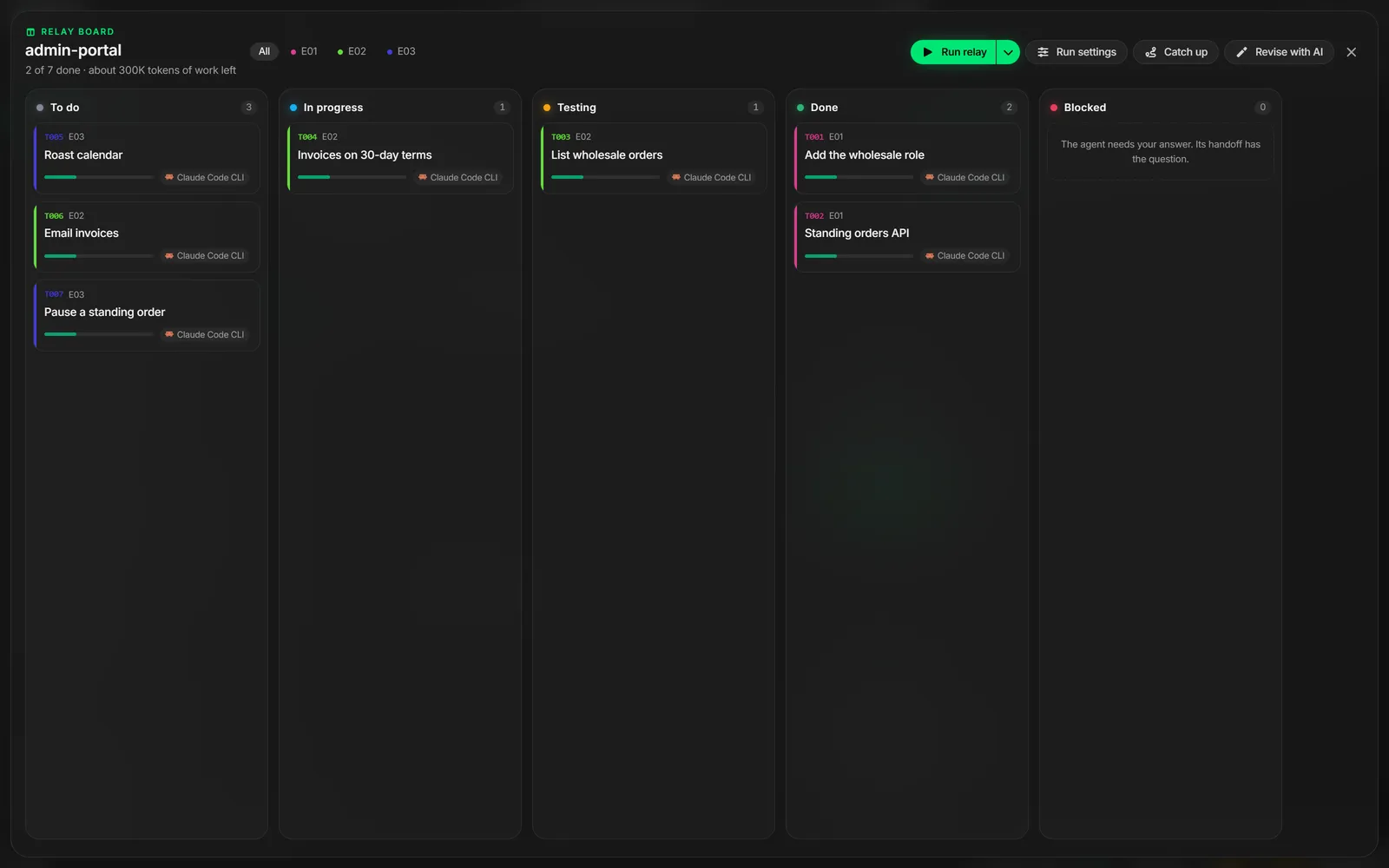
Long jobs fill an AI session’s context until it starts forgetting. Relay avoids that. The work is broken into small tasks, each sized to finish within one session’s context budget (200K tokens by default). Runova runs them one after another, each in a fresh session, and every session leaves a handoff file that the next one reads.
Think of it as a relay race: each task is a leg, each session a runner, and the handoff is the baton.
Where tasks come from
Tasks are Markdown files in your project, in docs/tasks/ (or the docs folder your Blueprint uses). You can write them yourself, but usually one of these makes them:
- Blueprint. On the review step, turn on Split into Relay tasks and pick a budget. The agent then writes task files instead of a backlog. A Tasks ready banner appears on the Blueprint tab once they exist.
- Split into tasks. In the Build Prompt dialog or on the Prompt Builder page, click Split into tasks. An AI planner reads your project and proposes tasks sized to the budget. You review them (leave some out, edit titles and estimates) before anything is written, then choose to add them, run them now, or start them at a time, after a task, or after a running session.
- Plan the rest with AI. For a project that is already under way. Click Plan the rest with AI in an empty Tasks tab or board, or Catch up on the board’s toolbar. The AI reads the code, your plans (README, roadmap, backlog, epics, status notes) and the git history, and works out what is finished, half done and left. Finished work can go on the board as done tasks (turn off Put finished work on the board if you only want what is left). Half-done work gets a handoff that says what exists and what comes next, so its first session carries on instead of starting over. A strip shows how the project stands before you apply anything, and a handoff a session already wrote is never replaced.
- Revise with AI. On the board, Revise with AI compares the tasks with your docs (the docs are the source of truth) and proposes tasks to add, change, split or remove. You see every change before you apply it, and a task that is done is never touched.
Planning in the background
A planner on a strong model and a high effort can read a project for a long time. You don’t have to wait for it. Once it has started, close the dialog and carry on anywhere in the app: the planner keeps going, and the status bar shows it (Splitting, Revising or Planning with the time so far). When it finishes you get a notification, in the app, or from Windows (or your OS) if you are in another app. Click Review on it, or the Tasks ready item in the status bar, to open the dialog on the result. Your edits to the proposal are kept if you close it again.
Cancel planning stops the planner. Discard drops a finished plan and takes you back to the form. A planner is stopped if it is still working after 60 minutes (90 for Plan the rest with AI). A plan lives until you add it, discard it or restart the app.
Each task file has a goal, a scope, acceptance criteria and a test plan, plus an estimate of the context it needs. docs/tasks/RELAY.md describes the format for any agent that reads it.
The Tasks tab
Open a project’s workspace and pick Tasks in the side panel. It shows the relay track: each task is a station, finished ones have a tick, and the running one carries the baton with a ring that fills as its session uses context. A mark on the ring shows where the session will be told to hand off.
- Run relay runs every task that is not done, in dependency order. The arrow next to it can schedule the relay instead.
- Run in a new session on a task opens one session for that task alone. The prompt is pasted and waits for you to press Enter.
- The task’s menu has Run the relay from here and Open on the board.
- Run settings (the sliders icon) picks the agent, model and effort for every task or one task, or Pick per task to size each task first, like Build Prompt does.
While a relay runs, the status bar shows which task is running and how full its context is. Click it to open the board.
The board
Open the board (or Task board on the project page) shows every task on a glass board with five columns: To do, In progress, Testing, Done and Blocked. Cards move by themselves as the relay works. You can also drag a card to another column or order, or use Alt+arrow keys.
Click a card to see its spec, the baton (the five handoff sections across every session) and its session history: agent, model, how long it ran, how much context it used, and how it ended.
How a task finishes
Every session updates docs/tasks/handoffs/T001.md (for task T001) with five sections: Purpose, Done so far, Decisions, Tried and rejected, and Next step. At the top it says the outcome:
- done: the task moves to Done and the next task starts. If its tests failed, it goes to Testing and the relay pauses.
- continue: the session ran out of budget. A fresh session starts on the same task and carries on from the Next step.
- blocked: the relay pauses and tells you why.
With Claude Code, Runova watches the session’s real context use. When it passes 80% of the budget, the session is told to finish its current step, write the handoff and stop, so no session runs past its budget and long tasks still finish. If a session tries to stop without writing its handoff, it is asked to write it first.
Runova keeps each task’s status in its file. Agents only write handoffs. With Commit when done on (the default), each finished task is committed on its own, with only the files it changed.
Plan first
Turn on Plan first in Run settings to start each session in plan mode. With Claude Code, a plan that has no open questions is approved for you and the session switches to auto mode (or Accept edits, if you choose) without a key press. A plan with an Open questions section, or a question the agent asks, waits for you.
What each agent supports
Claude Code gets everything above. Codex and Copilot talk to Runova through the runova_relay MCP server: they can read their task, check their context and report when they finish. Other agents run tasks too. They plan first and then wait for you, and Runova finishes their task from the handoff once their output goes quiet. Run settings shows what the chosen agent can do.
A session can also suggest follow-up tasks over MCP. They wait in Runova until you add them to the board or decline them.
If something goes wrong
- A session never starts. The first session in a folder Claude Code has never opened stops at its “trust this folder” question. Answer it in the tab, and the relay carries on.
- The relay paused. The Tasks tab says why. Fix the cause, then resume, or use Mark done on a task you finished by hand.
- A relay is already set up. One relay runs per project at a time. New tasks started now, or after one of its tasks, join it instead.