
Deploy
Deploy error reporting to Sentry
Send a server core's own warnings and errors to a Sentry project, set up from the Security section, with a test event to prove it works.
Read about this part of Runova on the Ship page.
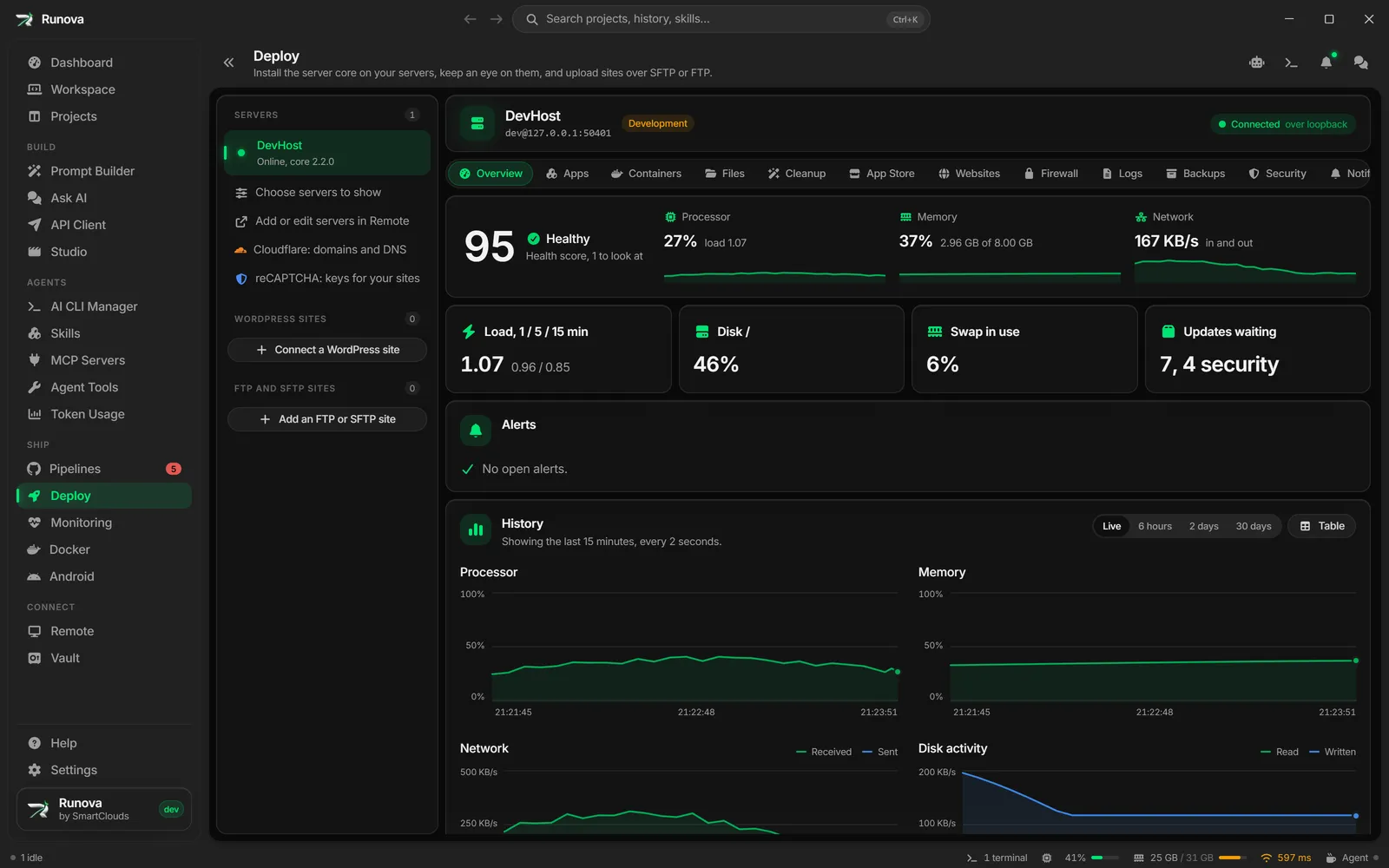
Error reporting makes a server’s core send its own warnings and errors to a Sentry project, so you hear about a problem on the server without having to be looking at it. The core does this itself, using OpenTelemetry (OTLP over HTTP), so the app does not need to be open and nothing extra is installed on the server.
This is about the core’s own logs. To read the issues your own apps report to Sentry, see Monitoring.
Where to find it
Click Deploy in the sidebar, pick a server in the rail, open Security in the section strip, then the Error reporting tab. You need to be signed in to the server’s core. Admins and Owners see the tab; Owners can change it.
| Action | Role needed |
|---|---|
| See how it stands and send a test event | Admin or higher |
| Set it up, change it, pause it or remove it | Owner (asks for your password again if the last confirmation is older than 10 minutes) |
Set it up
- In Sentry, open the project you want these logs in.
- Go to Project settings, then Client Keys (DSN), and copy the DSN. It looks like
https://<key>@o123.ingest.sentry.io/456. - Paste it into Sentry DSN on the Error reporting tab. Below the field the app says where the logs will go, such as
o123.ingest.sentry.io, project 456. - Choose an Environment (production, staging, development, or your own name) and a Server name. The server name is put on every event, so servers that share a project can be told apart. Leave it empty to use the machine’s own name.
- Choose What to send: Warnings and errors, or Errors only.
- Click Turn on error reporting.
The core starts sending at once. It does not restart, so nobody signed in to the server is disconnected.
Check that it works
Click Send test event at the top of the card. The core sends one event to your project and waits for Sentry’s answer, then the card says whether Sentry took it. If it did not, the message says why in words: the key was rejected, there is no such project, Sentry is receiving too many events, or the host could not be reached.
The status chip at the top says where things stand: Not set up, Paused, On, nothing sent yet, Sending, or Last send failed. The facts underneath show the destination, the environment, the server name, how many events were delivered and when the latest one went out.
What is sent, and what is not
- Only the core’s own warnings, errors and crashes. An unhandled exception that stops the core is sent before it stops.
- Passwords, tokens, keys and similar secrets are removed from every message, value and stack trace on the server before anything leaves it. Treat that as a safety net, not a licence to log secrets.
- Nothing is sent until you turn it on, and the DSN is only sent to the host it names. The core uses HTTPS, except for a Sentry on the same machine, and it never follows a redirect with your key.
- The DSN is sealed on the server. It is never shown again, here or anywhere else. To change the level, the environment or the name, leave the DSN field empty and save; the stored key is kept.
Pause or remove
Turn off Send logs to Sentry and save to pause: the setup is kept and nothing is sent. Remove forgets the DSN and stops sending after you confirm. Nothing already in Sentry is deleted.
Good to know
- Sentry’s OpenTelemetry log intake is in beta, so it may change. The logs appear in your Sentry project’s Logs, not as Issues.
- A self-hosted Sentry needs a recent version that has the OpenTelemetry log intake. A 404 on the test event usually means the project id is wrong or the Sentry is too old.
- A server whose core is older than this feature says so and offers to update the core. See Deploy servers and setup.
- Every change and every test event is recorded in the audit trail, with the host and project but never the key. See Deploy firewall and security.