
Getting started
Help center
Search these guides, read them next to the app, and ask the guide questions in your own words.
Read about this part of Runova on the Everything else page.
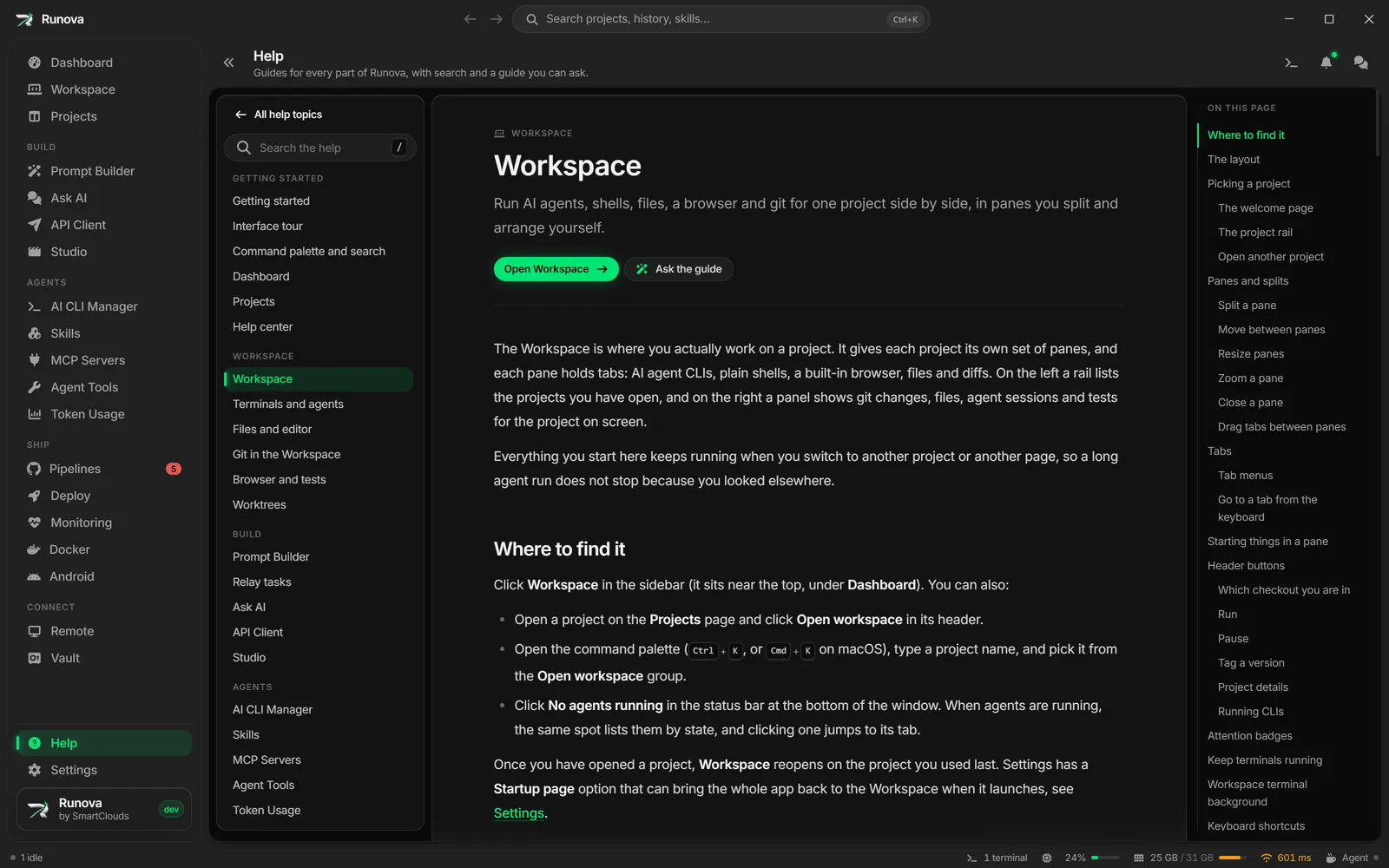
The Help page holds a guide for every part of Runova. You can search it, browse it by the same groups the menu uses, or ask the guide a question in plain words and get an answer drawn from these articles, with links to the exact sections it used.
Where to find it
- Press
F1from anywhere in the app. It works even while you are typing in a text box. - Click Help at the bottom of the sidebar, just above Settings. With the menu along the top, Help sits next to Settings at the right end of the bar.
- Open the command palette (
Ctrl+K,Cmd+Kon macOS) and type Help.
You can change the F1 key in Settings > Shortcuts, where it is listed as Open Help in the Navigation group. See Keyboard shortcuts.
The Help home
The Help home is the page you land on from the menu. It has three parts.
- The search box at the top. Below it, the Try row has a few common searches you can click to fill the box.
- Ask the guide, a card that opens the guide chat beside the page.
- Browse by area, a map of every article. The areas match the groups in the main menu (Build, Agents, Ship, Connect) plus Getting started, Workspace, Deploy, Settings and Troubleshooting. Each article shows the icon of the page it is about and a one-line summary. Click one to read it.
Search the help
The search box looks through every article’s title, keywords, headings and text, and shows the best matching sections as you type.
- Click the search box, or press
/anywhere on the Help page to jump to it. - Type a few words, such as a page name, a button label or what you want to do (“restore backup”, “split pane”).
- Use
UpandDownto move through the results, then pressEnterto open one. You can also click a result.
Each result shows the article, the section inside it, a short excerpt with your words highlighted, and the area it belongs to. Opening a result takes you straight to that section, not just to the top of the article.
Press Esc once to clear the box and again to leave it. Search works offline and does not need an AI provider.
Tip: Search matches the start of words, so “termin” already finds terminals. Small words like “how” or “the” are ignored when your query has better ones.
Read an article
An article page has the article in the middle and two side columns on a wide enough window.
- Left: a search box and the full list of articles by area, with the one you are reading highlighted. All help topics takes you back to the Help home.
- Right: On this page, an outline of the article’s sections. The section you are reading is marked as you scroll, and clicking one jumps to it.
At the top of the article you will find:
- Open followed by the page name (for example Open Vault), which takes you to the part of the app the article describes, so you can follow along.
- Ask the guide, which opens the guide chat beside the article.
Links inside an article open other articles in the Help page. At the bottom, Previous and Next walk through the articles in the order the Help home lists them. Key names are drawn as keycaps, and numbered steps show their number in a small ring.
Ask the guide
The guide is a chat that answers questions about using Runova. It only answers from these help articles, so it tells you where things are and which buttons to press, and it says so when the help does not cover something instead of guessing.
What the guide needs
The guide uses one of the AI providers you set up in Settings > AI:
- OpenAI or Gemini, once you have saved an API key for it.
- Ollama, once you have chosen an Ollama model.
If none is set up, the chat panel says so and shows a Set up a provider button that opens the AI tab in Settings. See AI providers. Search and reading work without a provider.
Ask a question
- Click Ask the guide on the Help home or at the top of any article. The chat opens beside the page and stays open as you move between articles.
- Pick a provider in the row at the top of the chat (only the ones you have set up can be picked) and a model from the list next to it. The chat starts on the same provider and models as Ask AI.
- Type your question and press
Enter(Shift+Enteradds a new line), or click one of the suggested questions.
Write in any language. The guide replies in the language you use and keeps the button and menu names as they appear in the app.
Read the answer
- Small numbered pills in the answer, like 1 or 2, are citations. Click one to open the help section that sentence came from.
- Under the answer, a link for each section the guide used shows the article and heading. Click it to read the full section.
- Follow-up questions work. The guide sees the last few messages, so “and how do I undo that?” makes sense after a question about a setting.
Click the stop button while the guide is thinking to cancel the question. The trash button at the top of the chat clears the conversation, and the close button hides the chat. The conversation is kept between sessions until you clear it.
How the guide finds answers
The first time you ask with a provider, the guide reads all the help articles and makes a search index of them. The chat shows “Reading the help for the first time” with a count while it does this. It only happens once per provider, and after an app update only changed sections are read again.
For each question the guide looks up the most relevant sections two ways at once:
- By keywords, using a full-text index that also matches word forms (so “splitting” finds “split”).
- By meaning, using embeddings from your provider, so a question phrased differently from the article still finds it. By default OpenAI uses
text-embedding-3-small, Gemini usesgemini-embedding-001, and Ollama uses thenomic-embed-textmodel. You can pick another model for each provider in Settings > AI > Help search, which indexes the help again with it. See Choose the search model.
The two result lists are merged, and the best few sections are sent to the chat model with your question. The index is a SQLite database in Runova’s data folder (help-index.db), searched with the sqlite-vec extension.
Note: With Ollama, the meaning search needs an embedding model on your server,
nomic-embed-textunless you chose another one. If it is not installed, the guide still answers from the keyword search and adds a note under the answer. Runollama pullwith the model name (for exampleollama pull nomic-embed-text) to turn on the meaning search.
Choose the search model
The Help search card in Settings > AI has one row each for OpenAI, Gemini and Ollama. Each row shows the embedding model that provider uses to find articles, with a progress bar and a line such as “120 of 120 passages indexed with text-embedding-3-small”. An Indexed badge appears once every passage is done. A row is dimmed and says Add an API key above first until you have saved a key for OpenAI or Gemini in Providers. Ollama is always available.
- Open Settings > AI and find the Help search card.
- In the row for your provider, open the model list and pick a model.
- The choice is saved at once and Runova starts indexing the help with the new model. Watch the progress bar until it is full.
What the model list shows:
- OpenAI offers
text-embedding-3-small(fast, low cost) andtext-embedding-3-large(most accurate). Gemini offersgemini-embedding-001. - Ollama lists the embedding models that are already on your Ollama server first, then a few suggestions:
nomic-embed-text(English),nomic-embed-text-v2-moe(multilingual),bge-m3(multilingual) andmxbai-embed-large(English). - You can type any model name and choose Use “name”. This works for every provider.
- An Ollama model that is not on your server is marked (not installed). When the model you picked is not installed, the row says to run
ollama pullwith that name, then click Update index.
The button next to the model list depends on the state of the index:
- Update index appears while some passages are not indexed yet. It indexes only those.
- Rebuild index appears once everything is indexed. It throws away the vectors for the current model and indexes every passage again.
- Stop replaces the button while indexing runs. What was finished is kept, so Update index carries on from there later. The model list is locked while indexing runs.
Both buttons also remove the stored vectors of that provider’s earlier models, since nothing searches them any more.
If you ask the guide before indexing has finished, it indexes what is missing first, so the first answer can be slow.
Tip: If you ask the guide in a language other than English, pick a multilingual model, such as
nomic-embed-text-v2-moeorbge-m3with Ollama. The ones marked English are meant for English text.
The model only changes how the guide searches. It does not change which provider or chat model writes the answer.
What leaves your computer
When you ask a question, your question, the last few messages of the conversation and the matching help sections are sent to the provider you picked. Building the index sends the help article text, which is the same for every user and contains nothing of yours. With Ollama, everything stays on the machine running Ollama.
Troubleshooting the guide
- “Set an OpenAI API key in Settings first.” or a similar message for Gemini: the key is missing. Add it in Settings > AI.
- “Could not reach Ollama”: Ollama is not running or the server address in Settings > AI is wrong.
- A note saying the answer came from keyword search only: the provider could not make embeddings (for example, the Ollama embedding model is not installed, or the network failed). The answer is still based on the help, just found by keywords.
- “No answer in time, so the request was stopped.”: check your connection and ask again. A first question on a slow connection or a slow computer can take a while because it also builds the index. Ask again if it stops: the index is saved as it goes, so the next try carries on where the last one ended.
For other problems, see Troubleshooting and FAQ.
Tips
- Use search when you know the name of the thing, and the guide when you only know what you want to do.
- Keep the guide open while you read. It moves with you from article to article.
- The Open button at the top of an article is the fastest way from reading about a feature to using it.