
Around the app
Everything else
The parts that hold the app together. A Dashboard, a status bar of live popovers, notifications, an offline help center, the AI Pet, settings and a proxy.
Dashboard
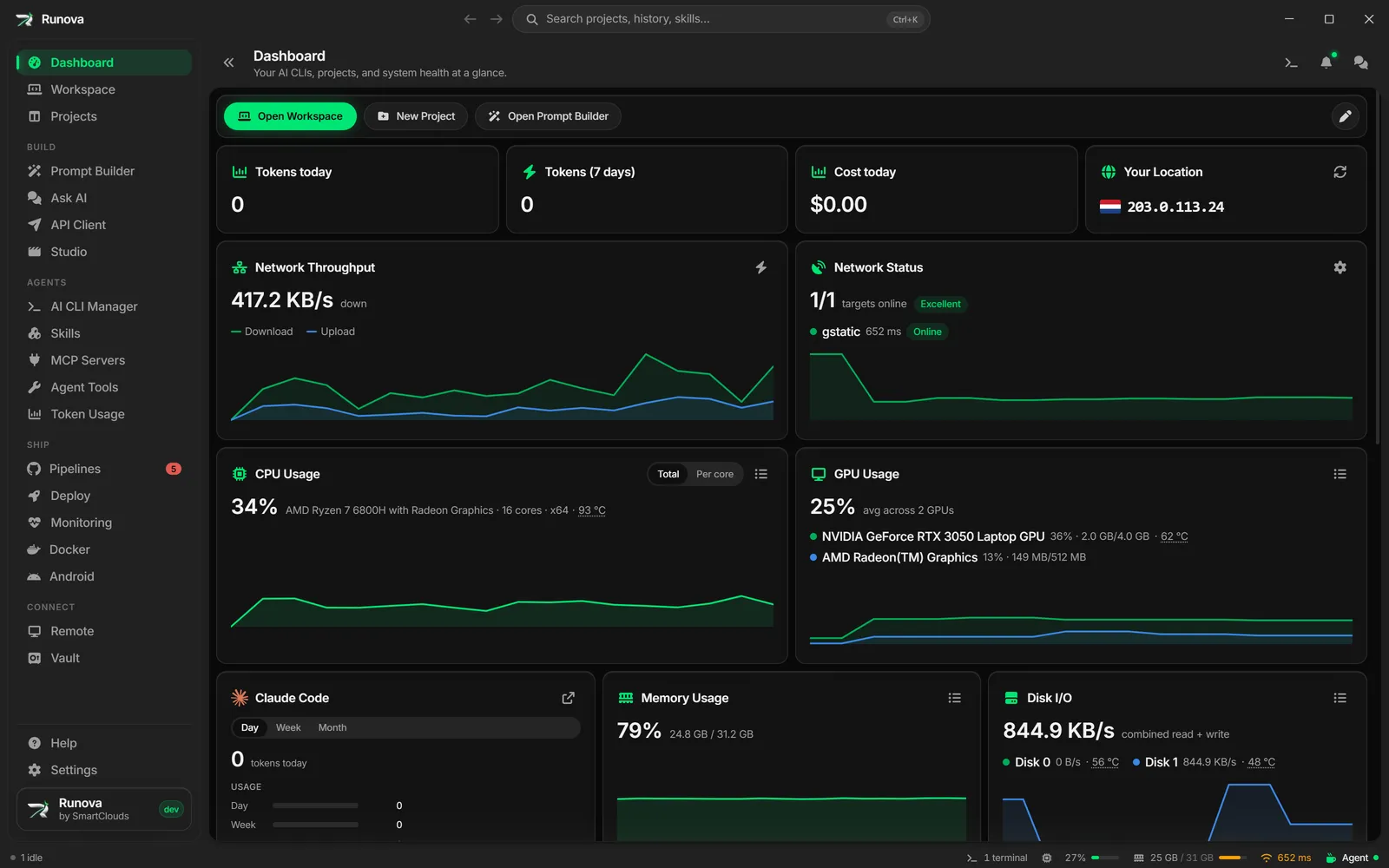
Your CLIs, token usage, GitHub activity, GitHub Actions and system health in one place. System health covers CPU per core, the GPU, memory, disk, network, and temperatures where they can be read. Rearrange the cards, run a speed test, and see which apps use the most resources.
Status bar
Along the bottom of the window: agent statuses, project runs, file transfers, plan limits, containers, Android emulators, CPU and memory, the network, the GitHub account and the keep-awake state. Each one opens a popover that takes you to the thing it is about.
Notifications
Failed GitHub Actions runs, background CLI activity and tool updates land in one list of recent messages. Turn on Telegram delivery to get them on the go.
Help center
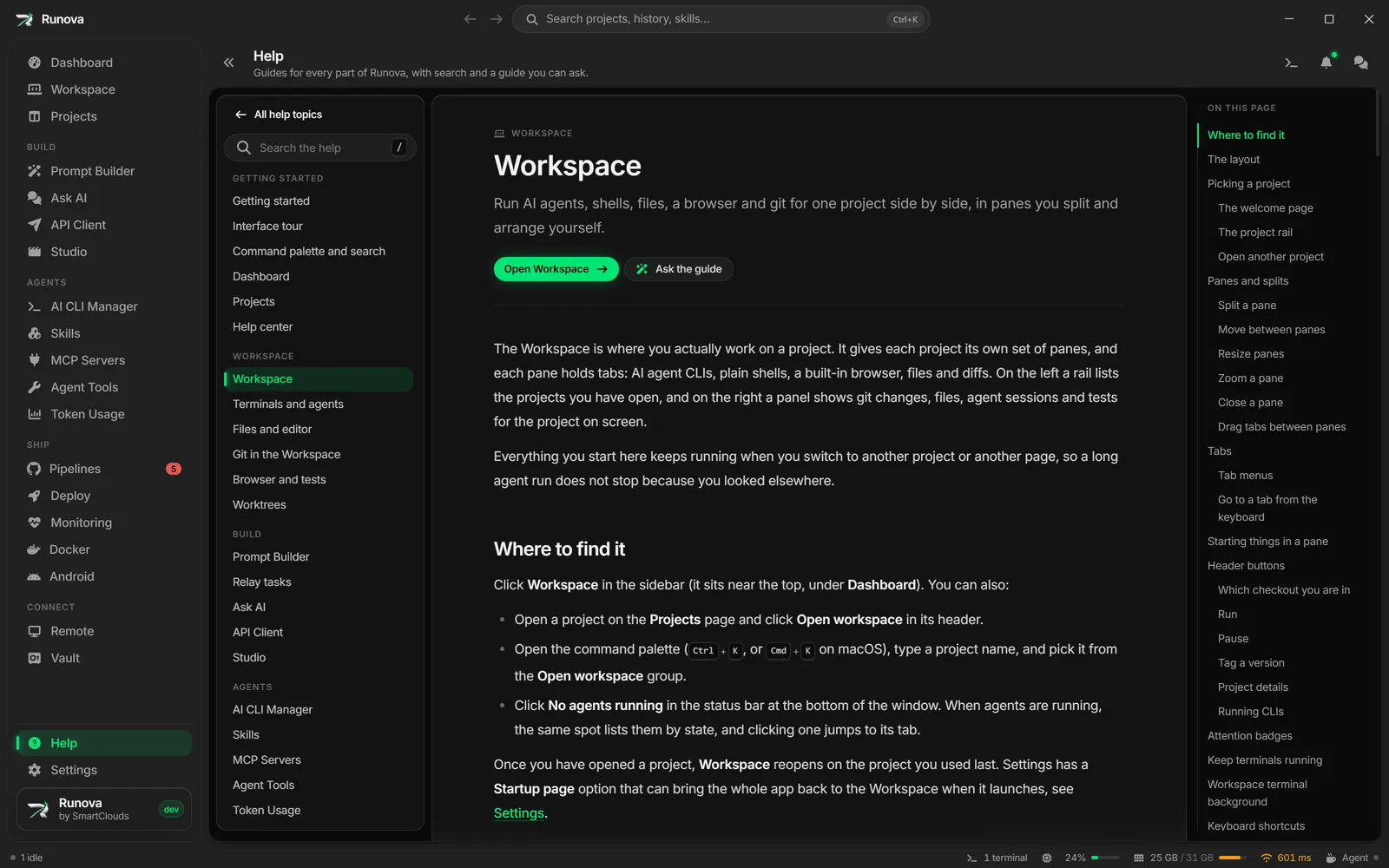
Press F1 for a guide to every part of the app. Search works offline, and Ask the guide answers your question in your own words from the same articles.
AI Pet
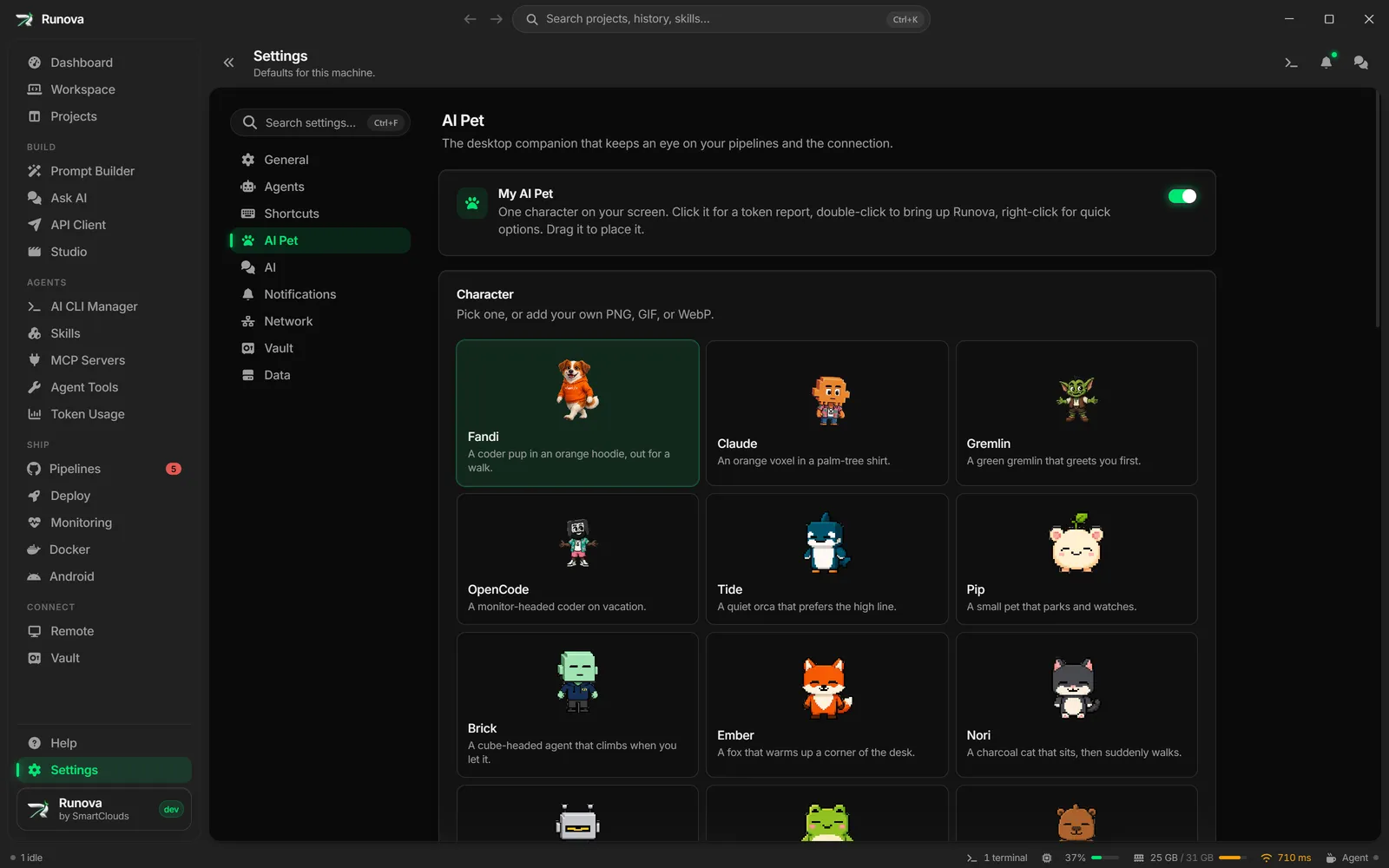
An optional character that lives on your desktop. Click it for a token report, double-click it to bring Runova to the front, and drag it wherever you like. It tells you when a pipeline fails, the network drops, an agent changes status or a project finishes. Right-click to stop it wandering, snooze it for 15 minutes up to 3 hours, or send it away. Pick a built-in character, give it a nickname, or add your own GIF, PNG or WebP.
Settings
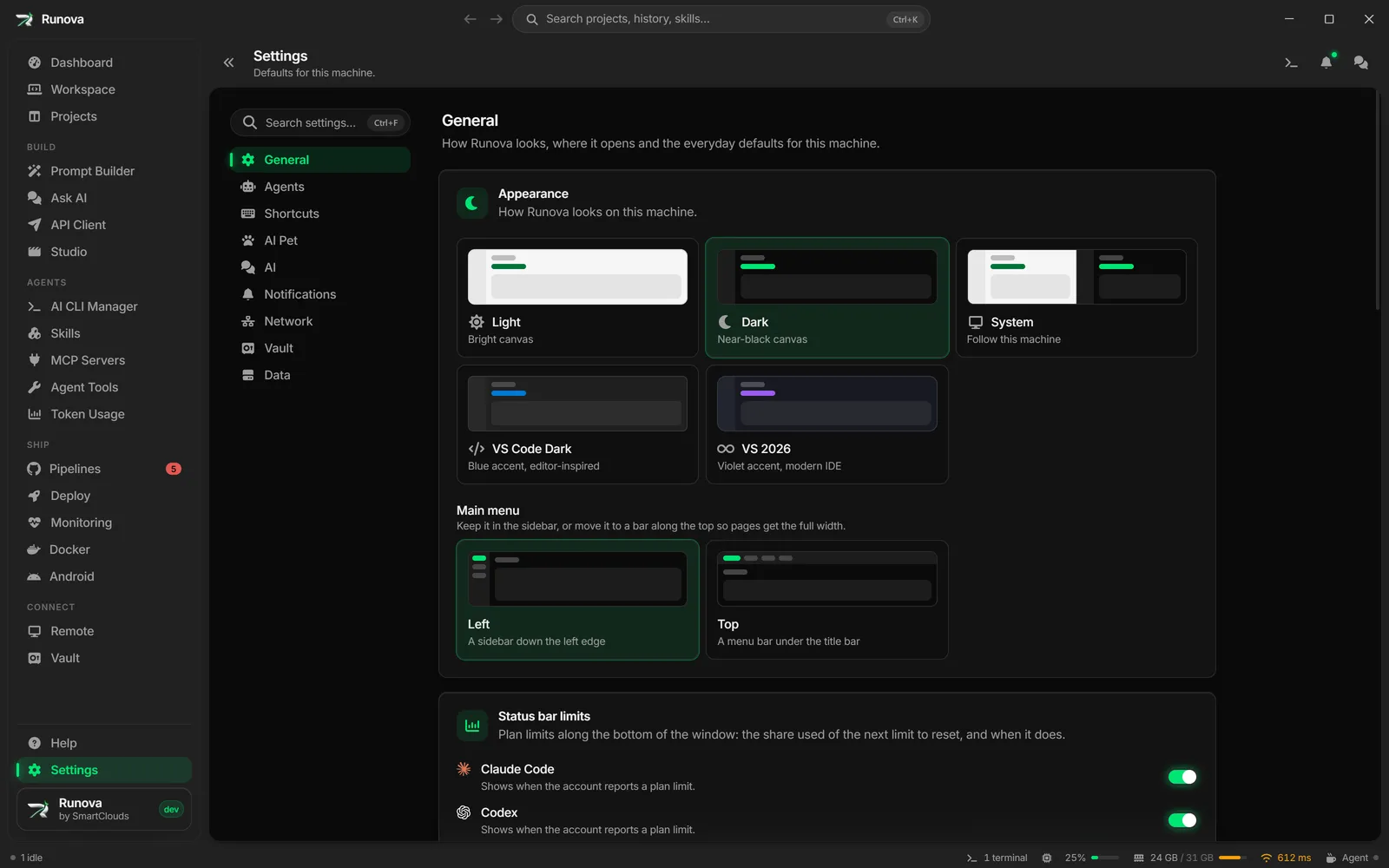
Tabs for General, Agents, Shortcuts, AI Pet, AI, Notifications, Network, Vault and Data. Choose from five themes (Light, Dark, System, VS Code Dark and VS 2026), put the main menu down the left or along the top, and use a translucent window on Windows 11 and macOS. Rebind the global and workspace shortcuts, and back up and restore your projects and settings, with environments and the vault if you want them.
Updates come from GitHub Releases and download in chunks you can pause and resume, so a dropped connection does not cost you what you already have.
Proxy
One setting under Settings > Network decides how the whole app reaches the internet: directly, through the computer’s own proxy (PAC scripts included), or through an HTTP, HTTPS or SOCKS server you enter, with a username and password if it needs one. It covers the AI providers, the skill and package registries, Telegram, update checks, and the CLIs and git commands Runova runs for you. Test connection checks a server before you save it and shows the address the internet saw you from.
Also in the app
A command palette on Ctrl+K (Cmd+K on macOS), a tabbed terminal drawer on Ctrl plus the backtick key, and a searchable history of every toast.