
Settings
Keyboard shortcuts
Every default shortcut in Runova, how to rebind or reset them in Settings, and the fixed keys for the terminal, editor, browser tab, API Client and other places.
Read about this part of Runova on the Everything else page.
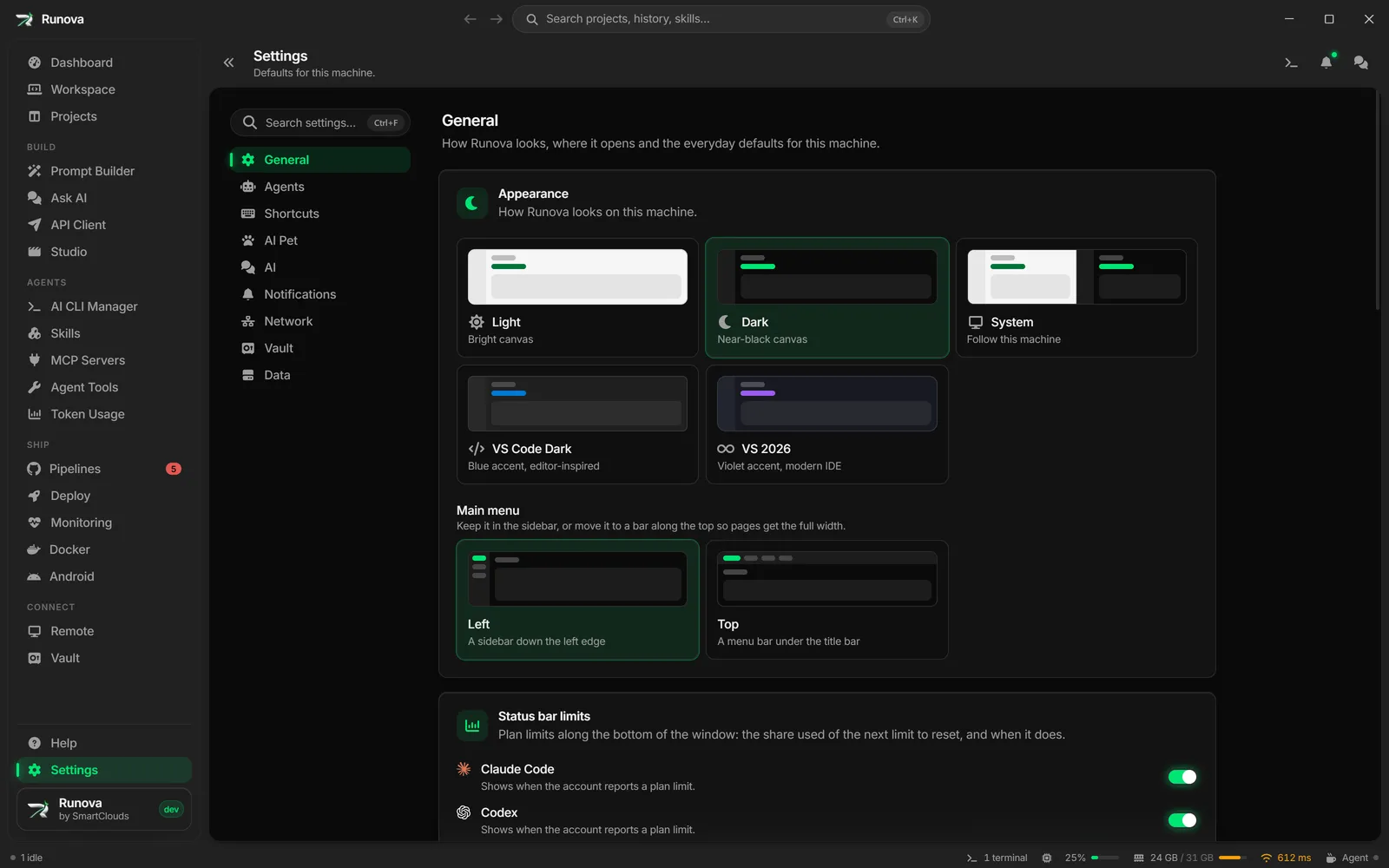
Runova has a list of shortcuts you can change (the app, Workspace, prompt builder, changes panel and Vault) and a smaller set of fixed keys that work the way they do in other tools, such as Ctrl+S to save. This article lists both. On macOS, Ctrl in the tables below is Cmd, Alt is Option and Shift is Shift. Runova treats Ctrl and Cmd as the same key, so one binding works on every system.
Where to find it
Click Settings in the main menu, open the Shortcuts tab and use the Keyboard shortcuts card. The page is at /settings?tab=shortcuts. The Help page, with its own search and Ask the guide chat, opens with F1. You can rebind it like any other shortcut (it is Open Help in the Navigation group).
Rebinding shortcuts
Rebind a shortcut
- Open Settings, Shortcuts.
- Find the command. They are grouped as Terminal, Navigation, Prompt builder, Workspace, Changes panel and Vault, and each group says where it applies.
- Click the + (Add a shortcut) next to the command. The row shows “Press keys… (Esc to cancel)”.
- Press the new key combination. It is saved immediately, there is no Save button.
A command can have more than one shortcut. For example Toggle terminal starts with both Ctrl+T and Ctrl plus the backtick key (the key above Tab on most keyboards). Click the x on a shortcut chip to remove just that one. A command with nothing bound shows “Not set”.
Reset shortcuts
The circular arrow at the end of a command’s row (tooltip “Restore the default”) puts that one command back to its default. It is greyed out when the command is already on its default. Restore defaults at the top of the card resets every command at once.
Only the commands you changed are remembered. Commands you never touched follow the defaults, so they pick up any new default in a later version.
Binding rules
- Physical keys. A shortcut is matched by the physical key, not the character it types, so shortcuts keep working after you switch to a Persian, Russian, Greek or any other keyboard layout.
- Needs a modifier. A shortcut must hold
Ctrl,CmdorAlt, or be a function key (F1toF12). Anything else would swallow normal typing, and the card says “Hold Ctrl, Cmd, or Alt, or use a function key.” - No clashes within a scope. If another command in the same scope already uses the combination, the card refuses it and tells you which one (“
Ctrl+Kis already used by …”). Different scopes can share a key, which is howCtrl+Ttranslates in the prompt builder and toggles the terminal everywhere else. - Scopes. App-wide shortcuts work anywhere. Workspace shortcuts only work on the Workspace page and beat the app-wide ones there. Prompt builder shortcuts only work while the prompt builder is open. Changes panel shortcuts only work while you type a commit message. Vault shortcuts only work on the Vault page while it is unlocked.
- Dialogs win. A dialog that binds the same combination takes it while it is open.
- Number rows. Open agent 1 to 9 and Go to tab 1 to 9 are stored as one binding for the whole row of number keys. Press any number key with the modifiers you want, and the card shows it as “
Ctrl+1...9”. Holding the same modifiers with 1 to 9 picks the item. - Inside a terminal. While a terminal has focus, the app-wide and Workspace shortcuts go to Runova instead of the shell, with one exception: the diff keys (
F7,Shift+F7) go to the program in the terminal.
App-wide
These work on every page. Their groups in Settings are Terminal and Navigation.
| Command | Default | What it does |
|---|---|---|
| Toggle terminal | Ctrl+T, Ctrl + backtick |
Opens the terminal drawer, or closes it when it is open. |
| New terminal tab | Ctrl+Shift + backtick |
Starts another shell in the drawer. |
| Stop run | Shift+F5 |
Closes the project run’s terminal and ends everything it started. |
| Pause or resume run | F6 |
Freezes the project run so it uses no CPU, or lets a paused one carry on. It acts on the same run Stop run would pick: the one open in the drawer, or else the newest. See Pause a run. |
| Go to Projects | Ctrl+P |
Opens the Projects page. Not available while a dialog is open. |
| Open Help | F1 |
Opens the Help page. Works even while you are typing in a text box. Not available while a dialog is open. |
| Command palette | Ctrl+K |
Opens search across projects, pages and commands. |
Prompt builder
These work only while the prompt builder is open (the Prompt Builder page, the Build Prompt dialog and the Build Prompt desktop widget).
| Command | Default | What it does |
|---|---|---|
| Generate prompt | Ctrl+G, Ctrl+Enter |
Builds the prompt from your request. |
| Translate request | Ctrl+T |
Rewrites your request in English without generating. |
| Copy generated prompt | Ctrl+C |
Copies the result. Ignored while text is selected, so normal copy still works. |
Workspace
These work only on the Workspace page.
| Command | Default | What it does |
|---|---|---|
| New tab | Ctrl+Shift+T |
Opens the agent and shell menu in the focused pane. |
| Build a prompt | Ctrl+G |
Opens the prompt builder for the project on screen. |
| Open agent 1 to 9 | Ctrl+1 to Ctrl+9 |
Starts an agent in the focused pane by its place in the + menu. Set the order in Settings, Agents, Agent order. |
| New browser tab | Ctrl+Shift+B |
Opens a browser tab in the focused pane. |
| Comment on a page element | Ctrl+Shift+C |
In a browser tab, picks an element on the page to leave a comment on for your agent. |
| Close tab | Ctrl+Shift+W |
Closes the active tab in the focused pane and ends its shell. |
| Split pane right | Ctrl+Shift+D |
Adds a pane to the right of the focused one. |
| Split pane down | Ctrl+Shift+E |
Adds a pane below the focused one. |
| Focus pane on the left | Ctrl+Alt+Left |
Moves keyboard focus to the pane on the left. |
| Focus pane on the right | Ctrl+Alt+Right |
Moves keyboard focus to the pane on the right. |
| Focus pane above | Ctrl+Alt+Up |
Moves keyboard focus to the pane above. |
| Focus pane below | Ctrl+Alt+Down |
Moves keyboard focus to the pane below. |
| Next tab | Ctrl+Tab, Ctrl+PageDown |
Switches to the next tab in the focused pane. |
| Previous tab | Ctrl+Shift+Tab, Ctrl+PageUp |
Switches to the previous tab in the focused pane. |
| Zoom pane | Ctrl+Shift+Enter |
Lets the focused pane fill the workspace, or puts it back. |
| Toggle changes panel | Ctrl+Shift+G |
Shows or hides the git changes panel on the right. |
| New worktree | Ctrl+Shift+N |
Starts a git worktree of the project on screen. |
| Run project | F5 |
Does what the header’s Run button does: starts the project’s run command, or asks which one when there are several, and for any values the command needs. |
| Search files and code | Ctrl+P |
Finds files, types, members and text in the project, with a preview. On the Workspace it takes Ctrl+P from Go to Projects. |
| Go to tab 1 to 9 | Alt+1 to Alt+9 |
Picks a tab in the focused pane by its position. |
| Next change in diff | F7 |
Jumps to the next changed block of the diff in the focused pane. |
| Previous change in diff | Shift+F7 |
Jumps to the previous changed block. |
Changes panel
These work while the cursor is in the commit message box of the Workspace changes panel.
| Command | Default | What it does |
|---|---|---|
| Commit | Ctrl+Enter |
Commits the staged changes, or stages everything first when nothing is staged. |
| Commit and push | Ctrl+Shift+Enter |
Commits, then pushes the branch. |
Vault
These work on the Vault page while the Vault is unlocked, and step aside for open dialogs and for the terminal drawer.
| Command | Default | What it does |
|---|---|---|
| Search the vault | Ctrl+F |
Puts the cursor in the Vault search box. |
| New entry | Ctrl+N |
Opens the editor for a new login, API key, note or custom entry. |
| Edit entry | Ctrl+E |
Opens the selected entry in the editor. |
| Lock the vault | Ctrl+L |
Locks the Vault right away. |
| Copy password | Ctrl+Shift+C |
Copies the selected entry’s password, or its secret for an API key. |
| Copy username | Ctrl+Shift+B |
Copies the selected login’s username. |
Fixed keys you cannot rebind
These keys are built in. They do not appear in the Settings list.
Going back and forward
| Keys | What they do |
|---|---|
Alt+Left, Alt+Right |
Go back and forward through the pages you visited. On macOS Cmd+[ and Cmd+] do the same. |
| Mouse back and forward buttons | The thumb buttons on the side of a mouse do the same. |
Terminal text
| Keys | What they do |
|---|---|
Ctrl+C |
Copies the selection when the terminal has one. With nothing selected it is a normal Ctrl+C and interrupts the running program. |
Ctrl+V, Shift+Insert |
Pastes the clipboard. Text and screenshots both work. |
Shift+Enter |
Inserts a new line in an agent CLI’s prompt instead of submitting it. |
Ctrl+click on a link |
Opens the link. A plain click just selects text. |
| Right-click | Copies the selection if there is one, otherwise pastes. A program that asked for mouse events gets the right-click instead, and Shift+right-click still pastes. |
Esc |
Brings a maximized terminal drawer back to its normal size. |
Workspace browser tabs
When the cursor is inside a web page in a Workspace browser tab, these keys work:
| Keys | What they do |
|---|---|
Ctrl+L |
Moves focus to the address bar. |
F5, Ctrl+R |
Reload the page. |
Ctrl+Shift+R |
Reload without the cache. |
Alt+Left, Alt+Right |
Back and forward (Cmd+[ and Cmd+] on macOS). |
F12, Ctrl+Shift+I |
Open developer tools (Cmd+Option+I on macOS). |
Ctrl+Shift+C |
Pick an element on the page. |
Editors
| Keys | What they do |
|---|---|
Ctrl+S |
Saves the file in a Workspace file tab and in the project file browser. |
Ctrl+S, Ctrl+B, Ctrl+I, Ctrl+K |
In the Markdown editor (Blueprint steps and similar): save, bold, italic and insert a link. |
Tab, Shift+Tab |
In the Markdown editor, indent and outdent. Enter continues a list. |
The code editor is Monaco, the editor behind VS Code, so its usual keys such as Ctrl+F for find also work inside a file.
Workspace search
Open it with the Search files and code shortcut (Ctrl+P on the Workspace by default).
| Keys | What they do |
|---|---|
Up, Down, PageUp, PageDown |
Move through results. |
Enter |
Opens the result. |
Ctrl+Enter |
Opens it in a pane to the side. |
Shift+Enter |
Opens it as a preview tab. |
Tab, Shift+Tab |
Switch the search filter (All, Files, Types, Members, Text). |
Alt+C, Alt+W, Alt+R |
Toggle Match case, Match whole word and Use regular expression. |
Prefix f:, t:, m:, x: |
Type one before your query to search Files, Types, Members or Text only. |
API Client
| Keys | What they do |
|---|---|
Ctrl+Enter |
Sends the current request. |
Ctrl+S |
Saves the request. |
Ctrl+N |
Opens a new request tab. |
Vault list
When the Vault list has focus: Up and Down move the selection, Home and End jump to the first and last entry, Enter opens the selected entry and Delete removes it. In the search box, Up, Down and Enter do the same and Esc clears the search.
Settings page
| Keys | What they do |
|---|---|
Ctrl+F |
Puts the cursor in the Settings search box. |
Ctrl+S |
Saves all unsaved changes on the page. |
Forms and chats
| Keys | What they do |
|---|---|
Ctrl+Enter |
Saves in the project form and the SSH and Remote Desktop server forms. In the prompt composer dialog (scheduled prompts) it schedules or saves the prompt. In pull request comments and review replies it posts them. |
Enter |
Sends a message in Ask AI. Shift+Enter adds a new line. |
Up, Down, Enter, Esc |
Move through, pick from and close the command palette. |
Remote Desktop
Ctrl+Alt+Break switches a Remote Desktop session window between full screen and a normal window.
Tips
- If a shortcut does nothing, check whether you are on the right page: Workspace, Vault and prompt builder shortcuts only work there.
- The command palette (
Ctrl+K) finds any page or action when you cannot remember its key. - Hover over a button. Many tooltips show the shortcut next to the name, and they update when you rebind it.