
Deploy
Server files
Browse a Deploy server's files in the two-pane file manager. Pick the server's own disk, a container or a Docker volume, then upload, download, rename, delete, change permissions and edit text files.
Read about this part of Runova on the Ship page.
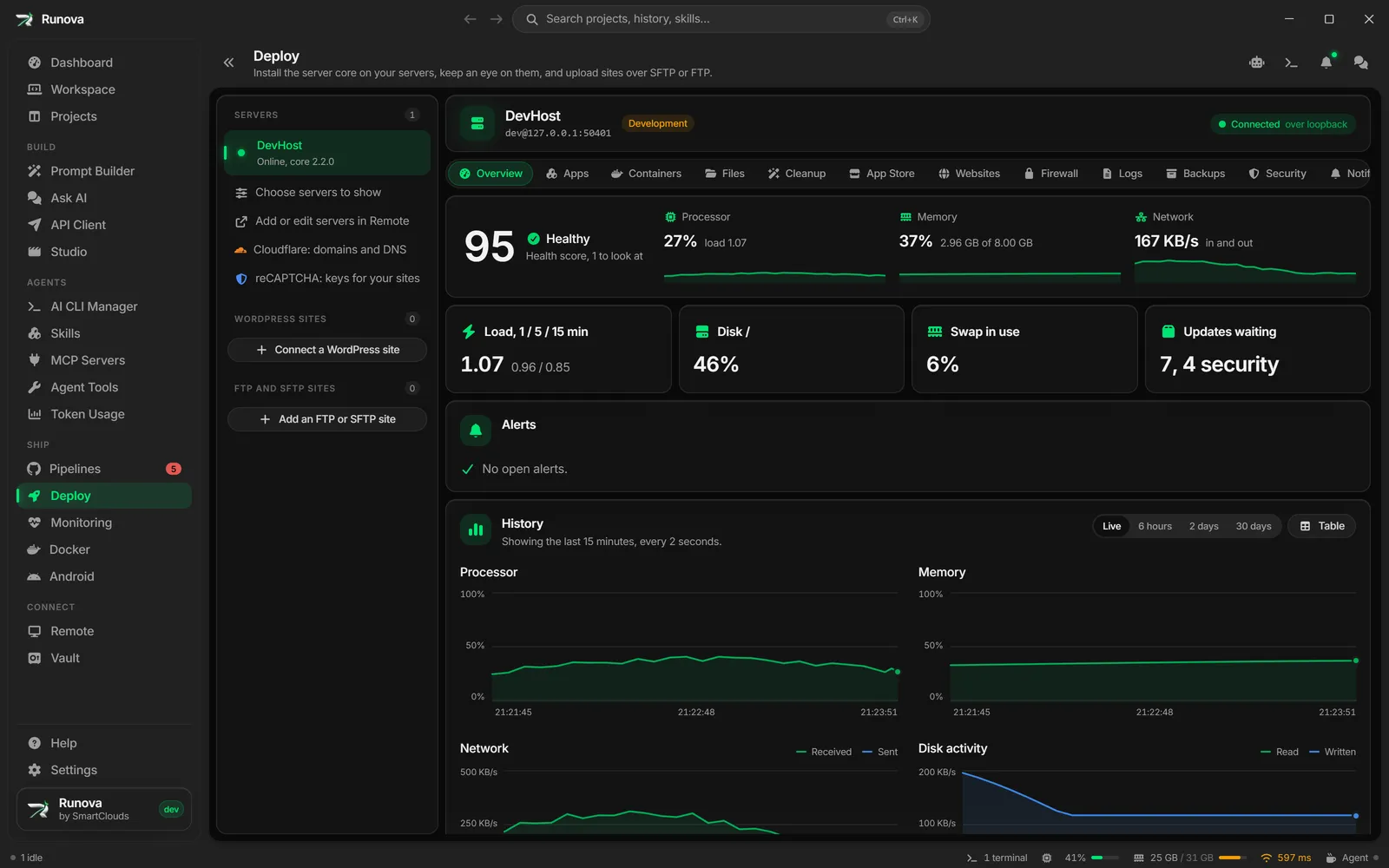
The Files section of a server in Deploy is the same file manager as SSH files: this computer on the left, the server on the right, and a Transfers card at the bottom. What makes it different is the source picker at the top. You can browse the server’s own disk, the file system inside a container, or a Docker volume.
That covers the jobs that used to need a terminal and docker cp: pulling a database dump out of a volume, putting an uploads folder into one, or fixing a config file inside a running container.
Where to find it
Open a server in Deploy and click Files in the section strip, between Containers and App Store. There are two shortcuts as well:
- In the Containers section, open a container and click Browse files in its panel.
- On the Volumes tab of the Containers section, click the folder button on a volume’s row.
Both open the Files section already pointed at that container or volume. The choice is part of the page address, so a refresh or a link brings you back to the same place.
Pick a source
The first box says what you are browsing:
| Source | What you see | What it needs |
|---|---|---|
| Server disk | The server’s own files over SFTP, starting in your login’s home folder | Only the SSH login you saved in Remote |
| Container | The file system inside one container, running or stopped | A sign-in to the server core with the Admin role, and Docker running |
| Volume | One Docker volume, shown from its root as / |
A sign-in to the server core with the Admin role, and Docker running |
When you pick Container or Volume, a second box lists what the server has. Containers show their state next to the name, for example shop-api-1 (running) or migrate-once (exited). Type in the box to find one by name.
The DevHost has no SSH, so it offers only Container and Volume, and starts on containers.
What you can do
Everything in SSH files works here: drag files and folders between the panes, answer the overwrite question with Overwrite, Keep both or Skip, cancel and retry transfers, create folders, and keep working on another page while files move. Transfers show in the status bar, and you can move the file manager to the bottom panel or a window of its own, as with any SSH server.
In a running container that has a shell, and in any volume, you can also rename, delete, change permissions and edit text files in place. An uploaded file gets the owner of the folder it lands in, and with a shell it appears all at once (it is written under a temporary name first, then moved into place).
Stopped containers and containers without a shell
A stopped container, or one built without a shell (a “distroless” image), can still be listed, and you can still upload, download and create folders. Rename, Delete, Permissions and Edit are turned off. A note above the server pane says why, for example “The container is stopped. Start it to rename, delete or change permissions.” Hover a turned off menu item to read the same reason. Permissions and properties still opens, but only to look.
Without a shell, uploads are written straight into place, not under a temporary name.
Only part of a folder is listed
In a stopped or shell-less container, a folder is read from an archive Docker makes of it, and for a very large folder (such as /usr) that read stops after a size limit. The pane then says Only part of this folder is listed. Open a folder further down, or start the container to see everything.
When it cannot open
| Message | What to do |
|---|---|
| Not signed in | Sign in to the server core in the card underneath. The server disk works without a sign-in. |
| Files in containers and volumes are for Admins | Your role on this server is lower than Admin. Ask an Owner to raise it. The server disk still works. |
| Docker is not installed or Docker is not running | Click Open Containers to install or start it. |
| No containers or No volumes | The server has none yet. They show up once an app or a compose stack makes them. |
| (name) is not on (server) anymore | The container or volume in the address was removed or renamed. Pick another one. |
Safety
Browsing a container or volume goes through the server core, never through folders on the host. Each path is kept inside the container or the volume, and file names never reach a shell. Every download and every change (upload, new folder, rename, delete, permissions) is written to the server’s audit trail, which Admins can read in the Security section.
A volume is opened through a small helper container that the core starts for it, with no network. It is removed after five minutes without use. Links inside a volume stay inside it: a link to /config means the volume’s own /config, and a link that climbs out with .. stops at the volume’s root.