
Connect
SSH files (SFTP)
Open a saved SSH server as a two-pane file manager. Upload and download files and whole folders, answer overwrite questions, change permissions and edit text files on the server. Keep an eye on transfers from the status bar, the bottom panel or a window of their own.
Read about this part of Runova on the Connect page.
The SSH files page is a file manager for the servers you saved under Remote, SSH. It works like FileZilla or WinSCP: this computer is on the left, the server is on the right, and a Transfers card at the bottom shows what is moving. It talks SFTP over the same SSH login the terminal uses, so the server needs nothing extra installed.
You can upload and download files and whole folders, create, rename and delete items on either side, change permissions on the server, and edit a text file on the server without downloading it first.
Where to find it
There are three ways in, and they all open the same page:
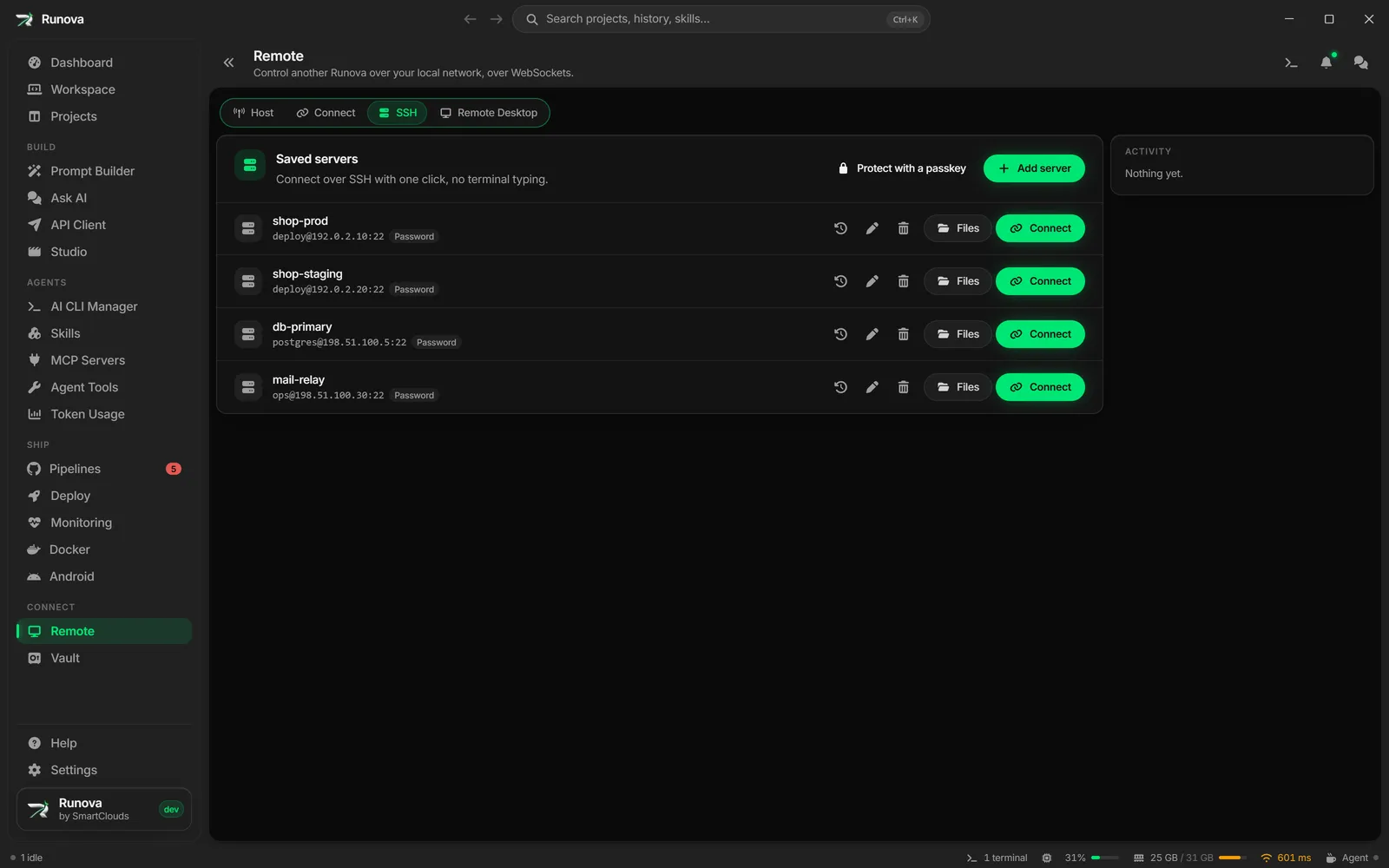
- On the Remote page, open the SSH tab and click Files on a server’s row.
- In the terminal panel, while an SSH tab of a saved server is active, click the folder button (Browse files over SFTP) in the panel’s toolbar.
- Press
Ctrl+K(Cmd+Kon macOS) to open the command palette, type the server’s nickname or host, and pick Open SFTP files: (nickname).
If the servers vault is locked, Runova asks for its passkey first. The first time you connect to a server, or if its host key has changed, you are asked to check and trust the key, the same way a terminal tab asks.
The page header says Files: (nickname), with user@host:port underneath. Disconnect ends the session. If transfers are still running, it asks first, because those transfers are cancelled. It ends the session everywhere the server’s files are shown, on the page, in the panel and in a separate window alike.
Browse
Each pane has a toolbar, a path bar and a list.
- Double-click a folder to open it.
BackspaceorAlt+Upgoes up one folder. - The toolbar has Up one folder, Home folder, Refresh, New folder, Show hidden files and a filter box. The local pane also has Places, which lists your drives, Home, Desktop, Documents and Downloads.
- Click a part of the path bar to jump there. Click the empty space in it, or press
Ctrl+L, to type a path.Entergoes there,Escapeputs the old path back. On the server side you can type~,~/logs, a relative path or... - Click a column heading to sort, and click it again to reverse. Folders always stay on top.
- The server pane shows each item’s permissions (like
rwxr-xr-x, with the octal form in a tooltip) and its owner. - A link shows a small link mark. A link that points nowhere is dimmed and says “Broken link”.
The footer of each pane shows how many items are selected and how big they are. Click selects, Ctrl+click adds or removes one item, and Shift+click selects a range.
Transfer files and folders
To send something to the other side, select it and do one of these:
- Click Upload to server or Download to this computer in the toolbar.
- Double-click a file, or press
Enteron it. - Drag it onto the other pane. Dropping on a folder row puts it inside that folder; dropping anywhere else puts it in the folder that pane shows.
- Drag files from your desktop or another app onto the server pane to upload them.
Folders go with everything inside them, and empty folders are created too. A link to a file is followed and the file is sent. A link to a folder is never followed: it is skipped and counted as skipped, so a transfer cannot wander off into another part of the disk.
A download only lands in a folder the local pane has shown, and file names from the server that Windows cannot use (such as a:b or CON) are changed so they fit.
When a file already exists
If a file you send is already at the target, the transfer stops and asks This file already exists. The dialog says which server it is on (“On (nickname)”) and shows both copies side by side, with their size and time, and a Newer tag on the later one. It opens on whatever page you are on, so you do not have to go back to the file manager to answer it.
| Button | What it does |
|---|---|
| Overwrite | Replaces the file that is there. |
| Keep both | Sends yours under a new name, like report (1).pdf. The dialog shows the name first. |
| Skip | Leaves the file that is there and moves on. |
Tick Do the same for the rest of this transfer to give the same answer to every other conflict in that transfer. Pressing Escape or closing the dialog skips only this one file. Cancel this transfer stops the whole transfer.
Nothing is overwritten until you answer. While one transfer waits for you, the others keep going. If a folder has the name of the file you are sending, Overwrite is not offered, since a file cannot replace a folder.
New folder, rename and delete
- New folder and Rename (
F2) turn a row into a text box.Enteror clicking away saves,Escapecancels. If the name is taken, Runova says so and the box stays open. - Delete (
Del) asks first and lists what will go. On the server, deleting is permanent and includes everything inside a folder. For a folder near the top of the disk, such as/var/www, you typedeleteto confirm. - On this computer, items go to the Recycle Bin or Trash. If that fails, Runova asks whether to delete them permanently instead.
- Deleting a link on the server removes the link only. The folder or file it points to is not touched.
Right-click an item for these and more: Download or Upload, Edit, Rename, Delete or Move to Trash, New folder, Permissions and properties, Copy path and Refresh (F5).
Permissions
Right-click an item on the server and choose Permissions and properties. The dialog shows the path (with a copy button), type, size, time, owner and group.
Under Permissions, tick Read, Write and Execute for Owner, Group and Others, or type the mode in the Octal field (like 755 or 0644). The two always match. Special bits holds setuid, setgid and sticky. If the octal field does not hold a valid mode, Apply stays off.
For a folder, tick Also apply inside and choose Folders and files, Files only or Folders only. The folder itself changes too, except with Files only, which leaves every folder alone. Links inside are left alone.
With several items selected, a box they disagree on shows a dash. It stays as each item has it unless you click it.
Edit a file on the server
Right-click a text file on the server and choose Edit. It opens in a full-size editor with syntax colors for its type.
- The header shows the file’s path and whether your changes are Saved or there are Unsaved changes.
- Press
Ctrl+S(Cmd+Son macOS) or click Save to save. The file is replaced in one step and keeps its permissions. - If someone changed the file on the server after you opened it, saving stops and asks: Overwrite with your version, Reload the server’s copy (your edits are lost), or Keep editing.
- Closing with unsaved changes asks first.
Files over 2 MB, and files that are not plain UTF-8 text (images, archives, programs), do not open. A message says why.
Note: The server keeps file times in whole seconds. A change made on the server in the same second you opened the file, that also keeps its size, is not noticed.
Transfers
The Transfers card at the bottom lists each upload, download, delete and permission change. Each row shows how many items are done (like “412 of 1,204”), the data moved, the speed and the time left.
- A row can say Waiting for your answer (a conflict), Done, Cancelled, or Failed with a count. Click Failed to see which files failed and why, and retry them one by one.
- Each row has a cancel or retry button. The header has Retry failed, Clear finished and Cancel all, and can be folded down to one line.
- Up to 3 files move at once. If the connection drops, a file is tried once more on a new connection before it counts as failed.
- Transfers keep running when you go to another page. See Keep working while files move.
Keep working while files move
A big upload can take a while, and you do not have to wait on the page for it. Leaving the page never disconnects: the session and its transfers keep running in the background until you click Disconnect or quit Runova.
The status bar
While anything is moving, an item shows in the status bar at the bottom of the window, with an arrow for uploads or downloads, the number of transfers and how far along they are, like “2 transfers 48%”. When a transfer stops on a file that already exists, the item turns amber and says Needs your answer. It is hidden again once nothing runs and nothing waits.
Click it to open the File transfers panel. For each server it lists every running transfer with a progress bar, how much has moved and the speed, and a button to cancel it. Each server also has:
- Answer, while a question waits. It opens the “This file already exists” dialog.
- Open file manager goes to the server’s page.
- Show in panel opens the server’s files in the bottom panel (see below).
While files are moving, the Keep computer awake item in Agent mode also counts them, and says it is held awake for file transfers.
Show the files in the bottom panel
To keep the file manager at hand while you work on other pages, click Show in panel in the server pane’s title row, next to Disconnect. The files move into a tab of the terminal panel at the bottom of the app, named after the server, and you are taken back to the page you were on before. The panel grows to a height where you can see a screenful of files.
The panel shows a smaller version of the file manager: each pane has a single toolbar row, the rows are tighter, the Permissions and Owner columns are left out, and the Transfers card starts folded to one line. Everything else works as on the page, and Permissions and properties is still in the right-click menu.
- Open as page in the server pane’s title row takes the files back to the full page and closes the tab.
- Closing the tab only closes the view. The session and its transfers keep going.
- While the same server’s page is open, the tab says Shown on the page instead of drawing the files twice. Show the page closes the panel.
You can also open the tab from the status bar item’s Show in panel link. Each server has at most one tab, so doing it again just brings that tab to the front.
Open the files in a new window
Click Open in a new window in the server pane’s title row (on the page or in the panel). The server’s files open in a window of their own that you can put on another screen. From the page, you are taken back to the page you were on before. From the panel, the tab closes.
The window shows the same session as the main window, with the same transfers and the same questions. If a file already exists, both windows can show the question, and the first answer counts.
- Back to main window brings the main window to the front on the server’s page and closes this one. The transfers carry on there.
- Closing the window with its own close button also hands the session back to the main window, so nothing stops. The main window stays where it was.
- Disconnect in the window ends the session for every view, the main window included.
Each server’s session has at most one such window. Clicking Open in a new window again brings it to the front. The window keeps the light or dark theme it opened with, and it closes when you close the main window.
Keyboard shortcuts
These work while a pane’s list has focus.
| Keys | What they do |
|---|---|
| Arrow keys | Move through the list. Add Shift to select as you go. |
Home, End |
First or last item. |
Enter |
Open a folder, or transfer a file to the other pane. |
Backspace, Alt+Up |
Up one folder. |
F2 |
Rename. |
Del |
Delete (on the server) or move to the Trash (on this computer). |
F5 |
Refresh. |
Ctrl+A |
Select everything. |
Escape |
Clear the selection. |
Ctrl+L |
Type a path. |
Tab |
Switch to the other pane. |
Security
- Your password and key never reach the page. Runova logs in with the server’s saved details, and asks for the servers vault passkey when the vault is locked.
- An unknown or changed host key always asks before anything is sent.
- Folder operations never follow links, so a link to
/etcinside a folder you delete or change is not followed. - File names from the server cannot place a download outside the folder you chose.
Tips
- To deploy a site and keep it in sync, use FTP and SFTP sites in Deploy instead. It sends only what changed since the last deploy.
- For files on another computer running Runova (not an SSH server), use Remote files.
- While an upload is running, the file shows on the server with a
.runova-name that ends in.part. It takes its real name once it is complete. - Deleting a very large folder over SFTP is slow, since every file is removed one at a time.