
Deploy
Deploy
Manage your own Linux servers from Runova: see how they are doing, run containers and websites, and keep them updated, all over SSH.
Read about this part of Runova on the Ship page.
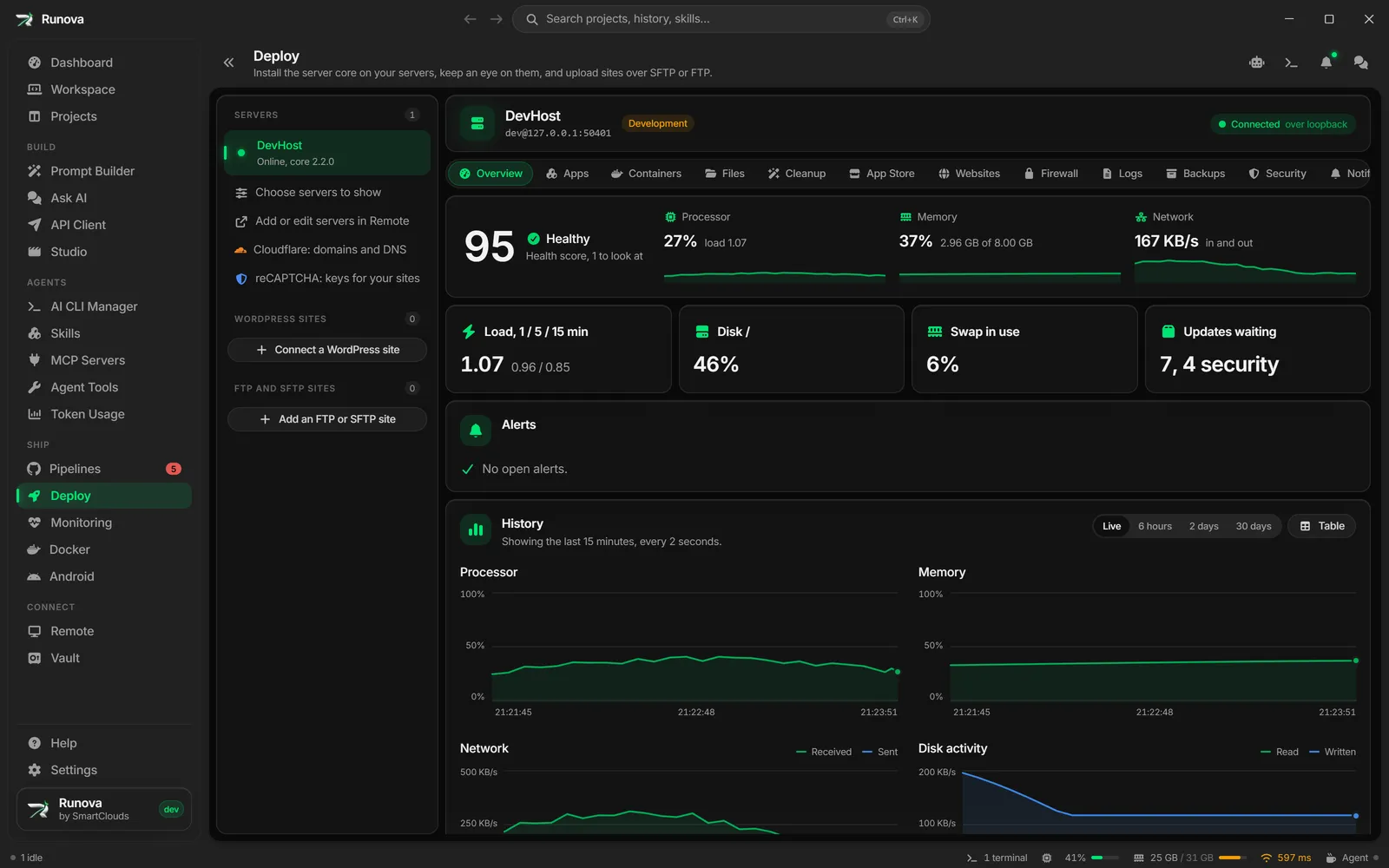
Deploy is where you manage your own Linux servers. You install a small program called the server core on a server (Runova reaches it through your SSH login, so no extra port is opened), and from then on you can watch the server live, update it, reboot it, run Docker containers, publish websites, set up a firewall and more.
This article explains the page itself: the server list, the sections of a server, and the Overview with its health score, charts, updates, services and reboot. Adding a server and installing the core is in Deploy: servers and setup.
Where to find it
Click Deploy in the sidebar under Ship, or open the command palette and type Deploy. The page header says “Install the server core on your servers, keep an eye on them, and upload sites over SFTP or FTP.”
The server rail
On the left is the Servers list with a count. It shows the servers you chose, in the order you put them in. A server you save in Remote stays out of Deploy until you pick it (see Choose which servers to show). Deploy does not have its own “add server” button. To add one, click Add or edit servers in Remote under the list, add it there, come back and pick it.
Each entry shows the server’s nickname and a status line with a status mark:
| Status line | Meaning |
|---|---|
| Core not installed | The server is saved but the server core is not on it yet. |
| Installing the core… / Removing the core… | A setup run is in progress (a spinner shows). |
| Connecting… | Runova is asking the core whether it answers. |
| Online, core 1.2.3 | The core answers. The version number is shown. |
| Not answering | The last check did not get an answer. |
Click a server to open it. Runova checks each core’s health every 30 seconds while the page is open. Under the list there are three shortcuts: Choose servers to show, Add or edit servers in Remote and Cloudflare: domains and DNS (see Cloudflare).
If you have no saved servers at all, the page says No servers yet and offers Open Remote and Manage Cloudflare. If you have saved servers but have not picked any for Deploy, it says No servers chosen yet and offers Choose servers to show.
Choose which servers to show
Click Choose servers to show under the list. A dialog lists every server you saved in Remote, each with its user@host:port. Tick the ones you want in Deploy and click Save. Save stays off until you change something, and Cancel closes the dialog without saving.
- A server you pick joins the end of the list. The servers already there keep their places.
- Unticking a server takes it off the list. Nothing changes on the server or in Remote, and its core keeps running. Tick it again to bring it back.
- A link that points at a server you did not pick (from a notification, for example) opens the first server in the list instead.
Change the order
Drag a server by its row to a new place. The other rows slide out of the way, and the page stays on the server you were looking at. With the keyboard, focus a server and press Alt with the Up or Down arrow. The order is saved, so the list looks the same the next time you open Deploy.
Further down the rail, the FTP and SFTP sites group lists folders you deploy to a host over SFTP, FTPS or FTP, without a server core. Click Add an FTP or SFTP site to add one. See FTP and SFTP sites.
The server header
Above the sections you see the server’s nickname and its login as user@host:port. Two extra markers can appear:
- Development (a badge): this is the DevHost, a built-in test server that only exists in development builds of Runova. It has no SSH, so you cannot update or remove its core from the page.
- A connection badge on the right (once the core is installed). It says Connected, Connecting, Reconnecting, Not connected, Sign-in needed, Access to set up again or Servers locked. Hover it for the reason and what happens next. When the connection is live it also says how it travels (SSH, direct TLS, the core domain or loopback). If a direct TLS certificate does not match the pinned one the badge says Certificate mismatch.
Locked servers banner
If your saved servers are protected with a passkey and are still locked, a yellow banner says “Your saved servers are locked with a passkey. Unlock them to reach their cores.” Click Unlock and confirm with your passkey. Until you do, Deploy cannot open SSH connections to your servers.
Sections of a server
Once a server has its core installed, a tab strip appears under the header. The section you are on is part of the page address, so it survives a refresh. In a narrow window the strip scrolls sideways.
| Section | What it is for | Article |
|---|---|---|
| Overview | Health score, live charts, alerts, system facts, updates, services, reboot, core health and your access | This article |
| Apps | Your apps: Docker Compose stacks you deploy, update and watch, and private registry sign-ins | Containers and stacks |
| Containers | Docker containers, images, volumes, networks and disk use | Containers and stacks |
| Files | The two-pane file manager on the server disk, a container or a volume | Server files |
| App Store | One-click apps from a catalog | App Store |
| Websites | Nginx sites and certificates | Websites and certificates |
| Firewall | Firewall rules with a safe apply | Firewall and security |
| Logs | Logs center and detected problems | Assistant and logs |
| Security | Checklist, users, devices, audit, backups, connection | Firewall and security |
If the core is not installed (or you chose to update it), the install panel replaces the sections. See Deploy: servers and setup.
The Deploy AI button
On every section of an installed server there is a Deploy AI button in the bottom right corner. It opens an assistant drawer for that server. When a run is waiting for your approval or an answer, the button says Waiting for you. See Deploy assistant and logs.
Overview
The Overview is the first section. It needs you to be signed in to the core. If you are not, it says “Sign in to see (server) live: its charts, services, alerts and updates.” and shows only the Server core and Your access cards so you can sign in (see Deploy: servers and setup). What you see and which buttons are enabled depend on your role on the core (Viewer, Operator, Admin or Owner). The core checks every action again, so a hidden button is not a loophole.
If the connection drops, everything stays on screen but dimmed, and it fills in again by itself when the connection returns.
Running jobs
Long tasks on the server (package updates, restarts, reboots) are called jobs. While one runs, a bar near the top says “Running: (job title), started by (user)” with a Show the log button. The log dialog shows the output live (errors in a warning color), the state (Running, Done, Failed, Cancelled or Interrupted), and a Cancel the job button for Operators and above when the job can be cancelled. Closing the dialog leaves the job running. The whole log stays on the server.
Pulse and health score
The Pulse card at the top has two parts.
The big number is the Health score out of 100, with a word next to it: Healthy (85 or more), Needs a look (60 to 84) or In trouble (below 60). Hover it to see what took points off. The score starts at 100 and loses points for:
- processor or memory above 75% (and more above 90%),
- a disk above 80% (and more above 90%),
- load above one (and above two) per core,
- swap more than half used,
- open alerts and failed services,
- security updates waiting,
- a reboot waiting,
- a clock that is out of sync.
The three ribbons show the last two minutes of Processor, Memory and Network (in and out), each with its current value. They dim when the live connection is down.
Quick numbers
Below the pulse, four tiles show Load, 1 / 5 / 15 min, Disk (the fullest disk, with its mount point), Swap in use (or “No swap”) and Updates waiting (with how many are security updates).
Alerts
The Alerts card lists open alerts from the core, for example disk pressure, a failed job or a reboot waiting. Each shows a severity (Critical, Warning or Info), how many times it fired and how long ago, and who acknowledged it. Operators and above get an Acknowledge button. With nothing open it says “No open alerts.”
History charts
The History card draws four charts: Processor, Memory, Network (received and sent) and Disk activity (read and written). Pick a range with the switch at the top:
| Range | What you see |
|---|---|
| Live | The last 15 minutes, a point every 2 seconds |
| 6 hours | One point a minute |
| 2 days | One point a minute |
| 30 days | One point every 15 minutes |
The longer ranges come from readings the core stores, starting from when it was installed, so a new core has no 30 day history yet. The Table button switches the charts to a table of readings (the newest 60), and Charts switches back. Hover a chart to read the values at a point in time. On the Memory chart the readout also gives the amount in use out of the total, such as 7.30 GB of 8.00 GB.
System
The System card shows what the server is: host name and OS, processor model and cores, memory and swap, every disk with a usage bar (the bar turns yellow above 80% and red above 90%), network interfaces, public address, kernel, how long it has been up, and whether the clock is in sync (with time zone and sync service). If a reboot is waiting (for example after a kernel update) a yellow note says so and names what asked for it.
Reboot
Operators and above see a Reboot button on the System card. It asks you to type the server’s nickname to confirm, and warns that websites and apps are down until the server is back, usually within a couple of minutes. Rebooting also asks you to confirm your password (see below). After you confirm, a banner says the server is about to reboot, then that Runova is waiting for it to come back. The page reconnects by itself, and a message says “(server) is back.” when it does.
Updates
The Updates card shows packages that can be updated, with security updates marked, and when the server last checked.
- Check for updates asks the package manager for new versions now (Operators and above).
- Install security updates (only shown when there are some) and Install all (Operators and above) first open a preview listing exactly which packages change and warn that services using them may restart. Confirm with Install (n) updates. A job log opens so you can follow it.
- Install all takes your password again (see below). Installing only the security updates does not.
- Automatic security updates is a switch, shown when the server supports it. It says whether the feature is on and which mechanism does it. Only Admins and Owners can change it.
- While one package job runs, the buttons wait.
Services
The Services card lists the services systemd reports for the server, each with a state (Running, Reloading, Stopped, Failed, Starting, Stopping, Unknown). Services that are not installed are hidden. For Docker and nginx, Operators and above also get a Restart button.
Server core and Your access
At the bottom of the Overview are two cards about the core itself. Server core shows the status (Online, Not answering or Connecting…), version, how long the core has been up, when it was installed, the operating system, processor and how the connection travels, plus Check now, and a menu with Update or reinstall and removal actions. Your access shows how this computer signs in. Both are explained in Deploy: servers and setup.
Confirm it is you
Some changes (installing every update, rebooting, and sensitive security changes) ask for your password again in a dialog called Confirm it is you. If your account uses two-factor you can switch to Use a code from your authenticator app. The confirmation counts for the next 10 minutes, so you are not asked again for each step.
To skip the question altogether, tick Remember my password on this computer in that dialog. The password is kept sealed in the Servers vault, and from then on Runova answers Confirm it is you for you. It is only kept after the core accepted it, and it is never kept for an authenticator code. Your access says when a password is remembered and has Forget it. Signing out of the server forgets it too, and so does a password the core stops accepting. If the Servers vault is locked, you are asked as before.
Tips
- The color of a status is always backed by a word or icon, so read the text if colors are hard to tell apart.
- If a server shows Not answering right after a restart, wait a minute. The core starts with the server and answers again shortly.
- If you only have a Viewer role you can look at everything but change nothing. Ask an Owner on that server to raise your role.