
Deploy
FTP and SFTP sites
Send a folder on this computer to a host over SFTP, FTPS or FTP. You see what changed since the last deploy, and nothing changed on the server is overwritten or deleted without your say.
Read about this part of Runova on the Ship page.
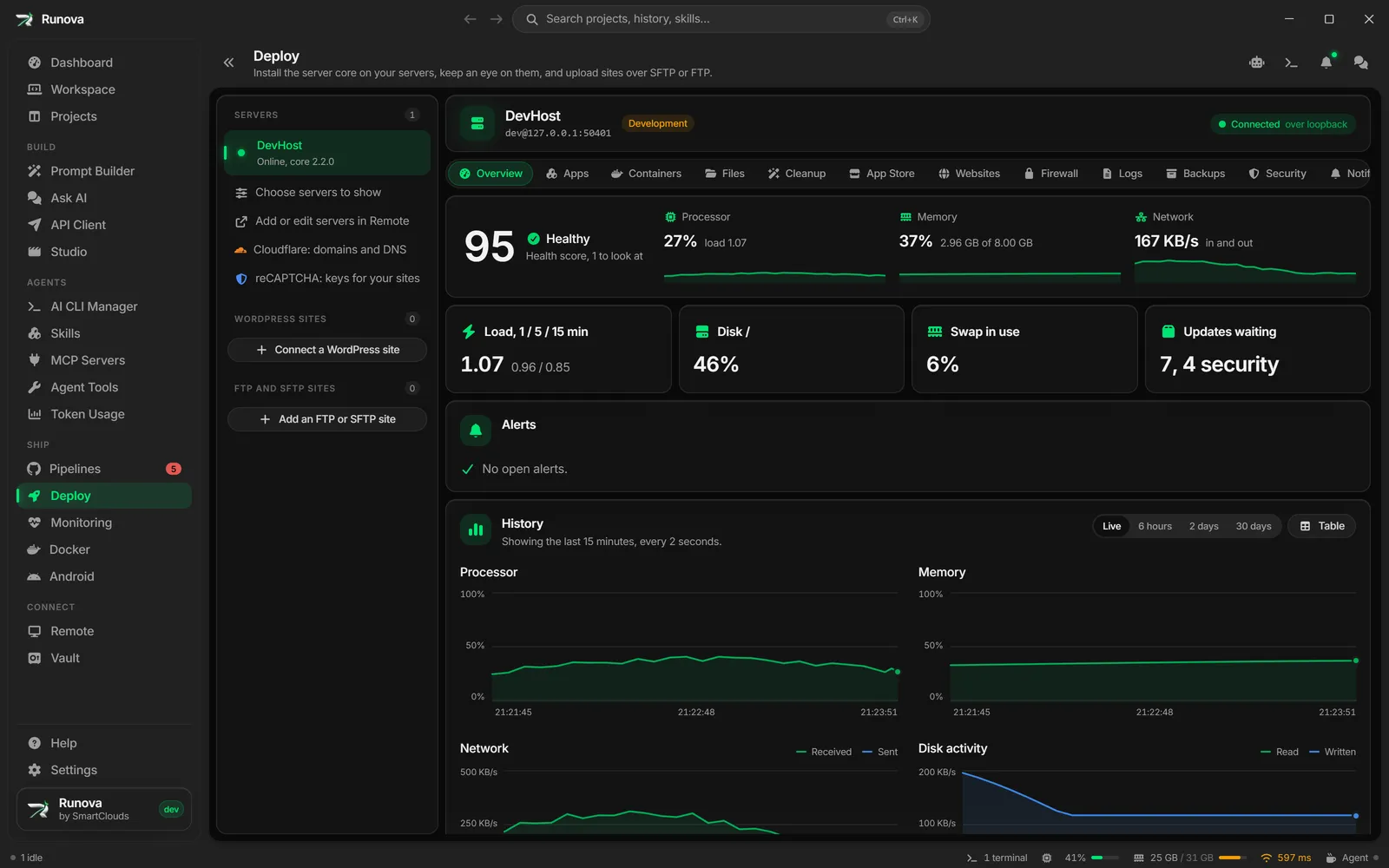
An FTP or SFTP site in Deploy is three things: a folder on this computer (the deploy folder), a login to a server, and a folder on that server. Runova watches the deploy folder and keeps a list of what was added, modified or deleted since the last deploy. When you click Deploy, it first checks the server folder, then sends only what changed. A file someone changed on the server is never overwritten without you choosing to, and a file is only deleted on the server if an earlier deploy put it there.
It works with any host that offers SFTP, FTPS or plain FTP: shared hosting, a VPS, or a static site host. The server does not need the Runova server core, and nothing is installed on it.
Where to find it
Click Deploy in the sidebar under Ship. In the rail on the left, under the servers and the WordPress sites, is the FTP and SFTP sites group with a count. Click Add an FTP or SFTP site under it to add one. If Deploy has nothing in it yet, the empty page has the same Add an FTP or SFTP site button.
Each site in the group shows its name, its address (user@host:/folder, or the saved server’s nickname and folder), a protocol chip (SFTP, FTPS or FTP) and one of:
- (n) to deploy, when changes are waiting,
- when it was last deployed, like “Deployed 5 min ago” or “Never deployed”.
A Needs review chip means Deploy on save stopped and is waiting for you (see Deploy on save). A plain FTP site also carries a Not encrypted chip.
Click a site to open it. The page has three sections: Changes (the default, with a count of pending files), History and Settings. The section is part of the page address, so it survives a refresh.
You can also add and deploy a site from a project’s page, see The project’s Deploy tab.
Add a site
The Add an FTP or SFTP site dialog says “A folder on this computer, sent to a folder on a server. You review what changed before anything is sent.” It runs top to bottom: Server, Folders, Connection, then Projects and options. Press Enter in any field to do the next useful thing: show what is missing, run the test, or save.
Pick the protocol
| Protocol | What the dialog says |
|---|---|
| SFTP | “Files over SSH. Encrypted, and the usual choice when the host gives you SSH.” Default port 22. |
| FTPS | “FTP over TLS. Encrypted, for hosts that offer FTP but not SSH.” Default port 21. |
| FTP | “Plain FTP. Not encrypted: your password and every file cross the network as readable text.” Default port 21. |
Warning: Plain FTP sends your password and every file as readable text. When you save an FTP site, Runova asks “Save a site that uses plain FTP?” and you have to click Use plain FTP. Pick FTPS or SFTP if your host offers either.
Saved server or your own login
For SFTP you choose how to log in:
- Saved server uses a server you saved in Remote. Pick it in the Server list. The site uses “the login and the trusted host key saved in Remote”, so if you change the password there, the site follows. If no servers are saved yet, the field says so.
- Enter a login is a login just for this site: Host, Port, Username, and Sign in with Password or Private key. For a key, choose the Private key file and, only if the key has one, its Key passphrase.
For FTPS and FTP you always enter the login in the form: Host, Port, Username and Password.
Type only the host name in Host, like files.example.com. Leave out ftp:// or sftp://.
Folders
- Deploy folder is the folder on this computer that holds the site. “Everything in it is sent, except what the ignore rules leave out.” Click Choose… to pick it. If your project builds into a folder such as
distorbuild, pick that one, since it is what goes live. - Folder on the server is “The site’s own folder, often /public_html or /var/www/your-site.” It must start with
/.
Click Browse next to the server folder to pick it from the server instead of typing it. It needs the server details filled in first. The browser opens at the folder in the field, or where the login starts when the field is empty. Click a folder to go into it, use the path at the top or Up one level to go back, and click Use this folder when you are in the right place. If a folder cannot be listed, you get Try again and Go to the start folder.
If the server folder is /, a warning says a deploy “could then touch any file this login can write”. Pick the site’s own folder unless the login only sees the site.
When the server reports the folder under another name, the field changes to that name and a note says “The server calls this folder (name), so the field now says that.”
Test connection
The Connection section explains the test: it “Signs in, finds the folder, then writes, replaces and removes a small test file. Nothing else on the server is touched.” Click Test connection. The checklist fills in as the steps finish:
| Step | When it passes | When it warns or fails |
|---|---|---|
| Reach the server | Reached the server | Couldn’t reach the server |
| Sign in | Signed in | Couldn’t sign in |
| Find the folder | Found the folder | Couldn’t find the folder |
| Write a test file | Can write files | Can’t write files there |
| Replace a file in one step | Replaces files in one step | Replaces files in two steps (a warning) |
| Check how changes on the server can be seen | Can see when files change on the server | Can only compare file sizes on the server (a warning) |
| Remove the test file | Removed the test file | Couldn’t remove the test file (a warning) |
Steps after a failure show as Skipped. When the test passes it says “Everything works. The site is ready to save.”, or “Works, with (n) things to know. You can save the site.” when some steps warned. Neither warning stops you:
- Replaces files in two steps means that for a moment during each upload, the old file is gone.
- Can only compare file sizes on the server means changes made on the server are judged by size alone. An edit there that keeps the size the same cannot be seen.
If you change the host, login or folders after a test, the dialog says “The details changed since the last test. Test again before saving.”
First connection to an SFTP server
The first time Runova meets an SFTP server, the test stops with First connection to this server and shows the host key’s Fingerprint. Compare it with the one your host shows (in its control panel, or with ssh-keygen -lf on the server). If they match, click Trust this key. The test runs again, and from then on a server that shows a different key is refused.
If the key is different from the one you trusted, the card says The server’s host key changed and shows Trusted before and Presented now. That is expected after the server was rebuilt or moved. If neither happened, do not trust it and ask your host. For a saved server, the key belongs to Remote, so trusting it here trusts it there too (see Host key prompts).
A certificate this computer does not trust (FTPS)
Many small hosts use a self-signed certificate. The test then shows This computer doesn’t trust the certificate, with the reason (self-signed, an unknown issuer, or expired), Issued to, Issued by, Valid until (or Expired on) and the SHA-256 fingerprint. Compare the fingerprint with the one your host gives you and click Trust this certificate. The trust applies to this site only, and a different certificate later is refused.
A certificate for another name (FTPS)
On shared hosts the certificate is often made out to the host’s own name, not yours. The test then shows The certificate is for another name and lists the names it covers. Click Use (name) to check the certificate against that name while still connecting to your host. If the certificate only covers wildcard names, change Host to a name it covers.
Projects and options
- Projects: attach the site to one or more projects. “The site shows on each attached project’s Deploy tab.”
- Deploy on save: “Sends changes by itself once the folder has been quiet for a moment. It never resolves a conflict or deletes many files on its own; those wait for you.” When it is on, Quiet time in seconds sets how long to wait after the last change, from 2 to 120 seconds (5 by default).
- Name (optional): “How the site is listed in Deploy.” Left empty, the site is named after the server or the folder.
Save
Add site (or Save changes when editing) is enabled once the test has passed with these details. If you cannot test right now, for example the server is down, use Save without testing. Editing only the name, projects or options does not need a new test.
The Changes list
Changes opens with a card that says what is waiting, such as “12 changes, 3.40 MB since the last deploy”, and the Deploy 12 changes (3.40 MB) button. While Runova is still reading the folder, a Checking the folder chip shows. With nothing waiting, the card says Everything is deployed and when that was.
Below is the list of changed files, grouped by folder (files at the top level are under Top folder). Each row has a chip (Added, Modified or Deleted, and a deleted file is struck through), the path and the size. Click a folder’s arrow to fold it. Long lists show 500 rows at a time with a Show (n) more button.
Filters and search
Type in Search paths to narrow the list. The chips All, Added, Modified, Deleted and Left out filter it, each with a count.
Tick what goes
Every file starts ticked. Untick a file, or a whole folder with the box on its folder row, to keep it for a later deploy. Select all and Select none act on the files shown. The line above the list says how many are ticked, like “8 of 12 files ticked”, and the Deploy button counts only the ticked ones. With nothing ticked, the button stays off and says “Tick at least one file to deploy.”
Left out and why
Left out lists the files in the deploy folder that are not sent, each with a reason. Hover or focus the reason to read it.
| Reason | What it means |
|---|---|
| Never sent | “Secrets, keys and version control folders never leave this computer, whatever the ignore lines say.” |
| Agent files | “Agent settings, skills and Runova files stay on this computer.” |
| Ignored | “Left out by an ignore line: the defaults, the folder’s .runovaignore or this site’s own.” |
| Link | “Links are not followed, so a link cannot send files from outside the deploy folder.” |
| Too large | “Files this large are not sent.” The limit is 2 GB a file. |
| Odd name | “The name is not valid text, so it would arrive broken on the server.” |
| Same name | “Another file has the same name in a different case. Many servers would treat them as one, so neither is sent.” |
| Bad name | “The name has characters or parts a server path cannot hold.” |
Never sent, whatever the ignore lines say
These names are refused anywhere in the folder, in any letter case:
- Version control and CI:
.git,.svn,.hg,.github,.worktrees. - Agent and Runova files (shown as Agent files):
.runova,.claude,.agents,.codex,.cursor,.windsurf,.continue,.factory,.gemini,.opencode,.roo,.kiro,.amazonq,.junie,.clinerules, anything starting with.aider, and the filesAGENTS.md,CLAUDE.md,CLAUDE.local.md,GEMINI.md,.mcp.json,opencode.json,.cursorrules,.windsurfrules,.roomodesand.runovaignoreitself. - Secrets and keys:
.env,.env.*(like.env.local),.envrc,.npmrc,auth.json,.netrc,.git-credentials, anything starting withid_rsa,id_ed25519orid_ecdsa, and anything ending in.pemor.ppk. - System clutter:
.DS_Store,Thumbs.db,desktop.ini.
php.ini and .user.ini are allowed, since shared hosts often read their PHP settings from them.
Left out by default
Unless an ignore line brings them back with !, these are left out: node_modules/, .vscode/, .idea/, .cache/, .sass-cache/, .phpunit.cache/, *.log, *.swp, *~, *.orig, .gitignore, .gitattributes, .editorconfig, .nvmrc, .phpunit.result.cache, and the top-level skills/ and agents/ folders.
To change what is left out, see Ignore lines.
Deploy
Click Deploy (n) changes. The button says Checking the server… while Runova lists the server folders the deploy touches and compares each file with what the last deploy left there. If nothing needs a choice, the deploy starts right away. Otherwise a Checked the server card opens above the list: “A few things need a look before anything is sent.” Click Continue when you are done, or Back to leave it.
Conflicts
A conflict is a file that changed on the server after your last deploy. The card says “(n) files changed on the server” and, for each file, what happened and the sizes and times (This computer, On the server now, At your last deploy). Pick an answer for every file, or use Overwrite all or Skip all:
| What happened | Your choices |
|---|---|
| “Changed on the server since your last deploy.” | Overwrite sends your copy. Skip keeps the server’s. |
| “Deleted here, but changed on the server since your last deploy.” | Delete removes it from the server. Keep leaves it. |
| “Already on the server, and not from a deploy of yours.” | Overwrite or Skip. |
| “Changed here, but deleted on the server.” | Upload sends it again. Skip leaves it gone. |
Continue stays off until every conflict has an answer. A skipped file stays in the Changes list for next time.
When the server gives no usable file times, a conflict row adds “Judged by size, since the times could not be compared”.
First deploy over existing files
On a site’s first deploy into a folder that already has files, the card says “This folder on the server already has (n) files”. Runova does not know which of them came from your folder, so it asks:
- Skip files with the same size (recommended): files with the same size as here count as already deployed. Only the others are uploaded.
- Overwrite all: “Every file is uploaded, replacing the server’s copy. Slower, but nothing is guessed.”
Files that are only on the server are never touched either way.
Other things the check can find
- Files gone from the server. “(n) files from your last deploy are gone from the server”. You did not change them here, so tick the ones to upload again, or click Upload all again. The rest stay as they are.
- Files changed on the server only. You did not change these here, so the deploy leaves them as they are on the server.
- A clock shift. When every file time on the server moved by the same whole number of hours, that is the server’s clock or a daylight saving change, not edits, so those files count as unchanged.
- Notes about the server, for example that changes there are judged by size alone, or that it cannot replace a file in one step.
Mass delete warning
When a deploy would delete more than 20 files, 5 or more files that are over a quarter of what earlier deploys sent, or everything because the deploy folder is empty, the card shows “This deploy deletes (n) files from the server.” Check that the deploy folder is the right one and that the list is what you meant. You can still go ahead, but Deploy on save never does this on its own.
Confirm deletes
If the deploy deletes anything, Runova asks “Delete (n) files from the server?” and lists them. Each one was deleted in the deploy folder, was sent by an earlier deploy, and has not changed on the server since. Click Delete and deploy, or cancel to go back to the review and untick the deletes.
Progress and cancel
While the deploy runs, a progress card takes the place of the button. It shows the phase (Connecting, Checking the server, Making folders, Uploading, Deleting, Cleaning up, Finishing), the file on its way, bars for Files and Data, the speed and the time left. Nothing covers the page, and you can leave it: the deploy keeps going and the progress is there when you come back.
Click Cancel to stop. Files that already arrived stay deployed, and what was not sent stays in the list.
If a file changes on this computer during the deploy, it is not sent with the old review. It stays in the list for the next deploy.
When it ends
A card says how it went: Deployed, Partly deployed, Failed or Cancelled, with what was sent (“3 uploaded, 1 deleted, 2 skipped”) and how long it took. A toast says the same.
- After a partial run: “The rest is still in the list. Deploy again to send it.”
- After a cancel: “What was not sent is still in the list.”
- When files failed, click Show failed files to see each one and why, then Retry failed to check the server again for just those files.
A run that stopped part way keeps what it sent. The next deploy picks up the rest and does not send the finished files again.
If the deploy could not start because the review is out of date (it expired after 10 minutes, or files changed on the server or here since), a Check the server again button makes a fresh one.
What is never deleted or overwritten
- A file is deleted on the server only if an earlier deploy uploaded it and it is unchanged there. A file that is only on the server is never touched.
- A folder is removed only if Runova created it, and only when it is empty.
- A change made on the server is never overwritten without you choosing Overwrite (or Delete) for that file.
- Removing a site, or forgetting what was deployed, changes nothing on the server.
- Files the server changed that you did not change here are left as they are.
Deploy on save
With Deploy on save on, the site’s header shows a Deploy on save chip. Once the deploy folder has been quiet for the quiet time, Runova checks the server and deploys what changed, one run at a time. If you save again during a run, it waits for quiet and runs again. The progress card says “Deploy on save is sending your changes.”, and History marks those runs Deploy on save.
It never decides for you. It stops, marks the site Needs review, and sends a notification when:
- a file is in conflict with the server (“Deploy on save stopped: some files need your choice”),
- it is the site’s first deploy into a server folder that already has files,
- the deploy would delete many files, or the deploy folder is empty (“Deploy on save stopped: this deploy would delete many files”),
- a deploy failed (“Deploy on save stopped after a deploy failed”).
It pauses (“Deploy on save is paused”) when the server turns down the login, the host key is not trusted or has changed, the certificate is not trusted or is for another name, the server offers no TLS, or your saved servers are locked. Fix the login or run Test connection from Edit, or turn the switch off and on again, to start it again. After a lock, it starts again by itself when you unlock.
A yellow note on the site’s page (and on the project’s Deploy tab) says why it stopped. Click Review the changes to check the server and go through the review by hand.
History
History lists the last 50 deploys to the site, newest first. Each shows how it ended (Deployed, Partly deployed, Failed or Cancelled), what it sent, when, how long it took, and who started it (You or Deploy on save). A failed run shows the reason. Click Show (n) failed files to see each failed file and why. Refresh reloads the list.
Settings
Settings has five cards.
- Connection shows the protocol, server, login, deploy folder, server folder and how changes on the server are seen: exact from file times, from file times asked file by file, or by size only. Click Edit to open the site dialog, change the login or folders, and run Test connection again.
- Deploy on save turns it on or off. The wait is changed in Edit.
- Ignore lines (see below).
- Projects lists the attached projects, each a link to its Deploy tab. Attach or detach projects in Edit.
- Start over has Forget what was deployed and Remove site. “Neither of these changes anything on the server.”
Ignore lines
Type files to leave out of this site, one pattern a line, as in a .gitignore. Start a line with ! to bring a file back, for example one the defaults leave out. Each line is checked as you type, and a mistake shows as “Line (n): (reason)”. Click Save to keep them.
You can also put a .runovaignore file in the deploy folder, with the same format. It applies first, then the site’s own lines. The .runovaignore file itself is never sent. Neither one can bring back a file on the never-sent list.
Forget what was deployed
This is for a server folder that was changed or emptied outside Runova. Runova forgets which files earlier deploys sent. The next deploy is treated as a first one: it compares the server folder by size and asks how to handle what is there. Nothing on the server changes when you click Forget.
Remove site
Remove site asks you to confirm, then removes the site from Runova with its deploy history, and with its login when the site has a login of its own (a server saved in Remote stays there). Files on the server are not touched, and neither is the deploy folder.
The project’s Deploy tab
A project’s page has a Deploy section (?tab=deploy) that shows every FTP or SFTP site attached to the project. Each site gets a card with its name, protocol, address and an Open in Deploy button, and under it the same Changes card and Deploy button as on the Deploy page. The file list is folded away: click Show the files (n) to see and tick it. Add another site adds one more.
With no site attached, the tab says No FTP or SFTP site yet and offers Add an FTP or SFTP site. The dialog then opens with the project attached and the project’s folder as the deploy folder. Change it to the build output if that is what goes live.
The Deploy section’s badge counts the changes waiting across the attached sites. It is tinted when a site needs review or its last deploy failed.
Deleting a project detaches it from its sites. The sites stay in Deploy.
Passwords and the passkey
A password or key passphrase you type is stored encrypted with your saved servers, the same way Remote stores SSH logins. It is never shown back: when you edit the site, the field says “Saved, leave empty to keep it”. A site that uses a saved server has no password of its own, it uses the one in Remote.
If you protect your saved servers with a passkey (see The servers passkey), the site logins are locked with them. The site’s page then says “Your saved servers and site logins are locked with a passkey. Unlock them to deploy to this site.” Click Unlock. If you change the passkey, the site logins move with it.
Troubleshooting
When something fails, Runova says what it means and what to try. For a refused request, a bad field, a certificate name or a write that was not allowed, you may see the server’s own words instead.
| Message | What to do |
|---|---|
| “The server didn’t accept the username, password or key.” | Check them in Edit and test again. For a saved server, fix the login in Remote. |
| “Couldn’t reach the server.” | Check the host name and port, and that this computer can reach the server (a VPN or firewall can block it). |
| “The server took too long to answer.” | Try again in a moment. |
| “This server’s host key hasn’t been trusted yet.” | Run Test connection and compare the key with the one your host shows. |
| “The server’s host key is not the one you trusted.” | If the server was rebuilt, trust the new key. If not, do not connect. |
| “This computer doesn’t trust the server’s certificate (self-signed, expired, or from an unknown issuer).” | Run Test connection to look at it and trust it for this site. |
| “The certificate is made out to another name, as on many shared hosts.” | Run Test connection and click Use (name). |
| “The server doesn’t offer encryption (FTPS).” | Ask your host to turn on FTP over TLS, or use SFTP. |
| “Your saved servers are locked with a passkey, and this site’s login with them.” | Unlock them, then try again. |
| “The deploy folder on this computer is gone.” | It may have been moved or renamed, or its drive is not connected. Click Pick the folder again. |
| “The folder on the server doesn’t exist.” | Pick another one with Browse, or create it on the server first. |
| “The server didn’t allow writing there.” | Check that this login can write to the folder. |
| “The server is out of space, or over its quota.” | Free space on the server or ask your host for more. |
| “Files on the server changed since the review was made.” | Click Check the server again. |
| “Files changed on this computer after the review was made.” | Click Check the server again. |
| “The deploy folder has too many files to track.” | The limit is 50,000 files. Click Edit the ignore lines and leave out build caches and dependencies. |
| “The review expired after 10 minutes.” | Click Check the server again. |
| “Another deploy or test of this site is still running.” | Wait for it to finish. |
| “Runova doesn’t know this site anymore.” | It may have been removed. Pick another site in the rail. |
| “One of the attached projects no longer exists.” | Open Edit and check the attached projects. |
| “Some of the details are not valid.” | Check the highlighted fields. |
| “Nothing left to send: the server already has what is ticked.” | Everything ticked is already on the server. |
If a file shows under Left out that you want sent, check its reason first. An Ignored file can be brought back with a ! line. A Never sent or Agent files file cannot.
Tips
- Deploy the build output, not the source folder, when your project has a build step.
- Test with a small folder first if you are not sure the server folder is right. Nothing is deleted on a first deploy.
- If a site’s server folder was emptied or replaced by hand, use Forget what was deployed so the next deploy compares it afresh.
- On a server that only compares sizes, an edit made there with the same size is not seen. Prefer SFTP when the host offers it.