
Deploy
Registries
Save sign-ins for private container registries such as GitHub Container Registry, Docker Hub or your own, so your servers can pull private images when you deploy.
Read about this part of Runova on the Ship page.
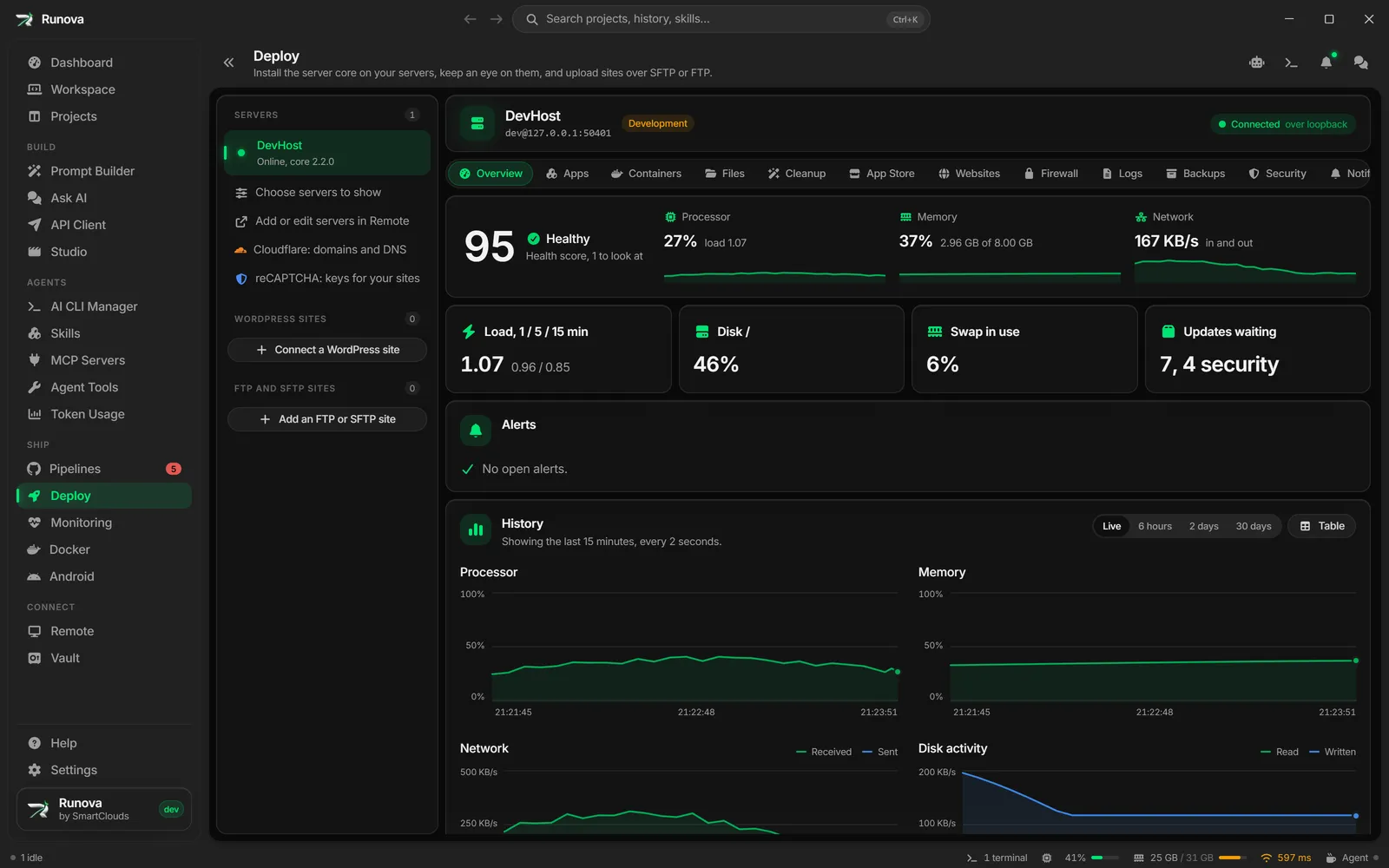
Registries are where container images are stored. Public images pull without any sign-in, but private ones need one. The Registries screen in Deploy is where you save those sign-ins so that deploys and image pulls on your servers can reach your private images without you typing anything on the server.
There are two places a sign-in can live. A sign-in on this computer goes along with each deploy that needs it and is wiped from the server when the deploy ends. A credential stored on the server is kept encrypted by the server core for deploys and pulls that run when nobody is there to sign in.
Where to find it
Click Deploy in the sidebar, pick a server in the server rail, click Apps in the strip of sections, then click Registries at the top right of the apps list. An Apps back button at the top of the Registries screen takes you back. You need to be signed in to the server’s core (see Servers and setup).
You can also reach it from an app: the Registry sign-in card on an app’s page has a Manage registries button.
How secrets are handled
The screen says it at the top: a deploy never leaves a token on the server’s disk. The token lives in memory for that deploy and is wiped when it ends, even when it fails. Sign-ins on this computer are sealed here like your saved server passwords. Credentials stored on the server are encrypted with the server’s own keys and are never shown again, not even to you. You can replace them or remove them.
On this computer
The On this computer card lists the sign-ins saved here. Each row shows the registry (for example “GitHub Container Registry” with the host ghcr.io, or “Docker Hub”), the user name and how the sign-in was made: Packages-only token, GitHub token, GitHub CLI sign-in or User name and token. Two badges can appear:
- Broad scopes (a warning badge): the GitHub token can do more than pull images. Hover the badge to see which scopes it also allows.
- Locked by the passkey: your saved servers are protected by a passkey that is locked right now, so the secret cannot go with a deploy. Unlock it from the banner on the Deploy page. A deploy that needs a locked sign-in stops with the reason.
The trash button on a row removes the sign-in after a confirmation. Deploys from this computer then stop sending it, and images that need it will not pull unless the server stores a credential of its own. With no sign-ins, the card says “No sign-ins yet. Public images pull without one.”
Four buttons add a sign-in.
GitHub packages token
For pulling images from GitHub Container Registry (ghcr.io). Click GitHub packages token.
- Click Open GitHub’s token page. It opens in your browser with only
read:packagesticked and the description “Runova server pulls”. Pick an expiry, create the classic token and copy it. - Paste it into Token and click Check with GitHub. Runova asks GitHub what the token can do and shows “Pulls packages as (user). Scopes: …”. A problem (for example a token without
read:packages) is shown with the reason. - If the token allows more than reading packages, a warning lists what each extra scope allows (for instance
repo: read and change every repository you can reach, orworkflow: change GitHub Actions workflows) and explains that the token goes to the server for every deploy, so a server that were broken into while a deploy runs would hold all of it. Tick I understand, and I want to use this token anyway to continue. A token with justread:packagesis the safer choice. - Click Save. The field empties and the token is stored on this computer.
Use the gh sign-in
If you use the GitHub CLI (gh), click Use the gh sign-in to reuse its sign-in instead of making a token. The dialog is called Use the GitHub CLI sign-in and takes the token gh is signed in with (gh auth token).
Because the gh token always carries broad scopes such as repo and workflow, you must tick the same warning checkbox before Use this sign-in is enabled. If gh is not installed or not signed in, the dialog shows what is wrong. If gh is signed in but its token lacks read:packages, the dialog shows the fix command gh auth refresh -h github.com -s read:packages. Click Copy, run it in a terminal (gh asks your browser for the new permission), then click Check again.
Docker Hub
Click Docker Hub, enter your User name and an Access token or password, then click Save sign-in. Docker recommends a Docker Hub access token with read-only access rather than your password. Docker Hub needs no sign-in for public images.
Custom registry
Click Custom registry for any registry that speaks the Docker registry API, such as GitLab, Harbor or your own registry:2. Enter the Registry host (for example registry.example.com:5000), a User name and an Access token or password, then click Save sign-in. The host and secret are checked while you type, and the secret is sealed after it is sent and never comes back.
Stored on this server
The Stored on this server card is for deploys and pulls that nobody is there to sign in for. It is shown to Operators and above (lower roles see “Credentials stored on the server are shown to Operators and above.”). Each row shows the registry, the user name, “stored on this server” and when it was last used (or “not used yet”). There is no way to read the secret back.
Only Admins can change what is stored (other roles see the buttons disabled with “Storing and removing credentials on the server needs the Admin role.”).
Store a credential
- Click Store a credential. The dialog is called Store a credential on (server name).
- In Credential, pick one of your sign-ins from this computer (shown as “name (user), from this computer”), or pick Type one in and enter the Registry host (for example
ghcr.io), User name and Token or password. Sign-ins that are locked by the passkey are not offered. - Click the save button and confirm your account password again when asked. The server keeps the credential encrypted with its own keys and uses it whenever a deploy or pull brings no sign-in of its own.
Remove a stored credential
Click the trash button on a row, confirm, then confirm your password again. Deploys and pulls on that server that bring no sign-in will no longer reach that registry.
Which sign-in a deploy uses
Each app has a Registry sign-in card (on the Review step of the New app wizard and on the app’s page) that lists every registry its images come from and what will sign in to it:
- “the sign-in from this computer goes with the deploy”,
- “the credential stored on this server signs in”,
- “no sign-in, which is fine for public images” (Docker Hub only), or
- a warning that there is no sign-in and the pull fails unless the images are public.
An image can take its registry from a variable, such as image: ${IMAGE_PREFIX:-ghcr.io/acme/shop}-web:${TAG}. When the app’s .env leaves that variable unset, the default names the registry and the card lists it as usual. When the .env sets it, only the server reads the value, so the card says so instead. Every sign-in from this computer then goes with the deploy, and the server signs in only to the registries the images actually pull from.
On an existing app’s page, the card has a switch Send this computer’s sign-ins with this app’s deploys. Turn it off to stop sending your local sign-ins with that app. The card also has a Manage registries button. If an app builds from the project, every stored credential is used, since base images can come from anywhere.
Image pulls on the Images tab of Containers use your saved sign-in for that image’s registry too. If you have none, the credential stored on the server for that registry is used. See Containers, apps and stacks.
Tips
- Prefer a GitHub token made from the GitHub packages token dialog. It has just
read:packages, so a stolen copy can only pull images. - Store a credential on the server only if you need pulls to work without this computer.
- A failed pull usually means no sign-in is set for that registry. Check the app’s Registry sign-in card.