
Deploy
App Store
Install well-known apps such as databases, WordPress, n8n or Grafana on a server you deploy to with one screen, then connect to them, update them and roll them back.
Read about this part of Runova on the Ship page.
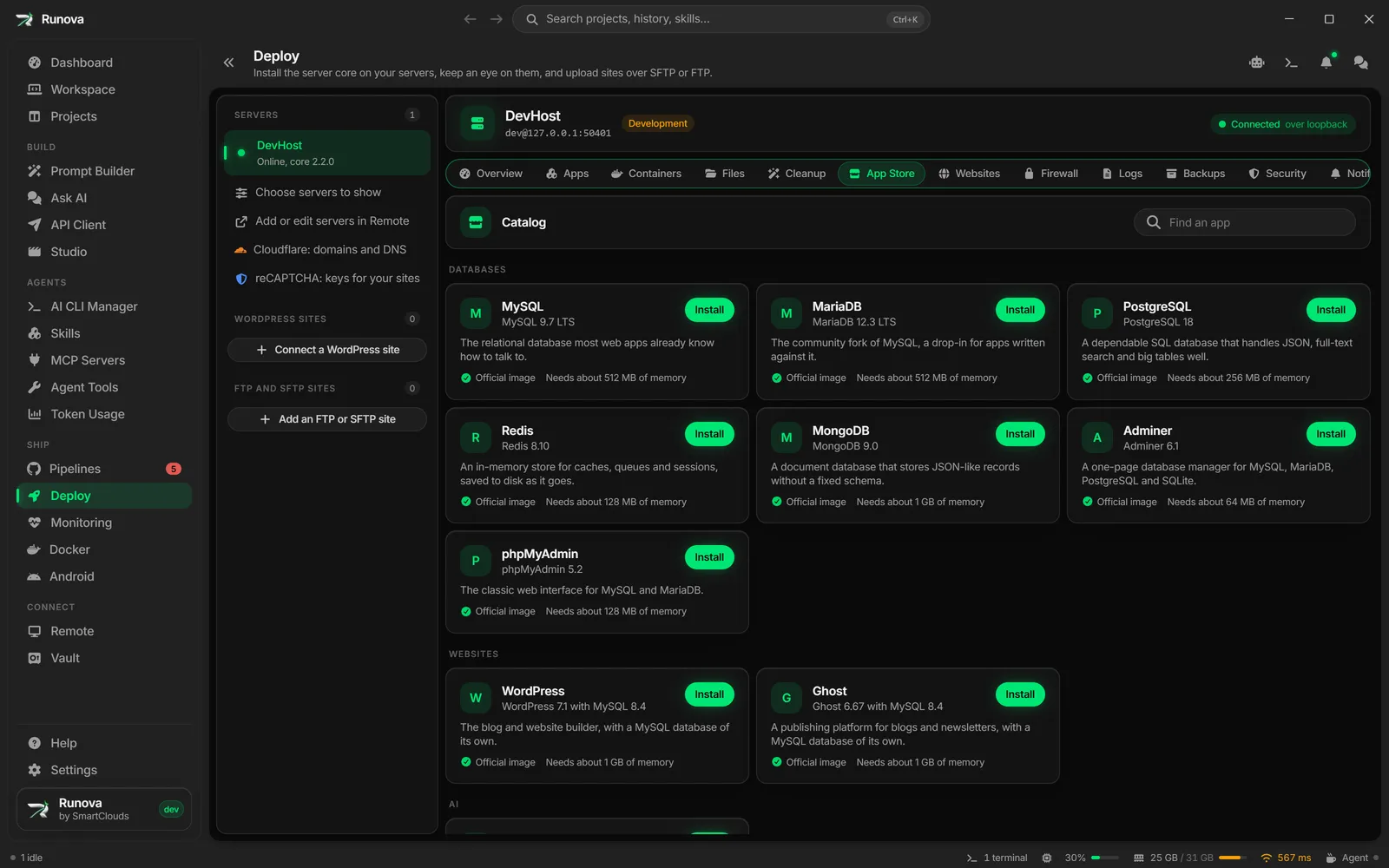
The App Store section of a server in Deploy installs ready-made apps on that server. You pick an app from a catalog, choose a version, review the generated passwords, optionally put it on a domain with a free certificate, and click Install. Behind the scenes each app is a Docker Compose app, so it also appears under Apps and can be rolled back like any other.
Every catalog image is an official Docker image or comes from a verified publisher, and each one is pinned by tag and by digest, so you install exactly what the catalog was checked against. The server needs Docker, see Containers, apps and stacks.
Where to find it
Click Deploy in the sidebar, pick a server in the server rail, then click App Store in the strip of sections above the content. You need to be signed in to that server’s core first (see Servers and setup); otherwise the section shows a card with a Sign in button, so you can sign in without leaving it.
Installing needs the Operator role. Putting an app on a domain and revealing its passwords later need the Admin role.
What the section shows
The page has two parts.
- Installed lists the apps this server got from the App Store. Each row shows the app’s name, its version (and the domain, if any), a status word (Not deployed, Working, Running, Degraded, Stopped, Taken down or Failed) and Update available when the catalog has something newer. Click a row to open that app. The list only appears once you installed something.
- Catalog lists everything you can install, grouped by category: Databases, Websites, AI, Automation, Monitoring, Developer tools, Search, Messaging and Storage. Type in Find an app to filter by name or description. Each card shows the name, the default version, a short description, a badge (Official image or Verified publisher), how much memory the app needs, and an Install button. If your role is below Operator the button is disabled with a hint.
What is in the catalog
| App | Category | What it is | Memory it needs |
|---|---|---|---|
| MySQL | Databases | Relational database, versions 9.7 LTS and 8.4 LTS | about 512 MB |
| MariaDB | Databases | MySQL fork, versions 12.3 LTS and 11.4 LTS | about 512 MB |
| PostgreSQL | Databases | SQL database, versions 18 and 17 | about 256 MB |
| Redis | Databases | In-memory store for caches, queues and sessions | about 128 MB |
| MongoDB | Databases | Document database, versions 9.0 and 8.0 | about 1 GB |
| Adminer | Databases | One-page database manager | about 64 MB |
| phpMyAdmin | Databases | Web interface for MySQL and MariaDB | about 128 MB |
| WordPress | Websites | Blog and site builder, with its own MySQL | about 1 GB |
| Ghost | Websites | Publishing platform, with its own MySQL | about 1 GB |
| Ollama | AI | Runs open language models, with Open WebUI as a chat front end | about 8 GB |
| n8n | Automation | Workflow automation with a visual editor | about 1 GB |
| Uptime Kuma | Monitoring | Watches your sites and tells you when one goes down | about 256 MB |
| Grafana | Monitoring | Dashboards and alerts | about 256 MB |
| Prometheus | Monitoring | Metrics collection and storage | about 512 MB |
| Gitea | Developer tools | Lightweight self-hosted Git | about 512 MB |
| Meilisearch | Search | Fast, typo-tolerant search engine | about 512 MB |
| RabbitMQ | Messaging | Message broker with its management UI | about 512 MB |
| Apache Kafka | Messaging | Event streaming on a single node, with a password on every connection | about 1.5 GB |
| Nextcloud | Storage | File sync and sharing, with MariaDB | about 2 GB |
Install an app
- In Catalog, find the app and click Install. The install sheet opens (it is also reachable by link, so the address of the page holds the app you picked).
- At the top, check the Images badges. Each one says who publishes the image (“Docker Official Image” or “Verified publisher: name”) and shows the image with the start of its pinned digest. Hover it to see the full reference, when it was checked and for which platforms.
- Set the App name. It becomes the compose project name on the server, so use lowercase letters, digits, dashes and underscores. The app suggests the catalog name and adds a number if that name is taken.
- Pick a Version. Apps with more than one release line mark the best choice as “(recommended)”.
- Fill in the app’s own settings, which differ per app. Typical ones are the Port the app uses on the server, a Database name, a User, an Admin user or a Default server. Ollama has toggles for Open WebUI (a chat interface with accounts of its own) and Use NVIDIA GPUs (the server needs the NVIDIA Container Toolkit). Each field has a hint under it, and problems show in red.
- Look at the Passwords block. The app generates strong passwords and keys on your computer for this install only. For each one you can copy it, click the refresh button to make a new one, or type your own (it must pass the same rules). This is the one time they are shown in full, so copy what you need now. An Admin can reveal them later from the app’s card.
- Decide about Put it on a domain (see the next section). It is off by default, and the app then listens on
127.0.0.1of the server only. - Read the notes at the bottom. They say how much memory the app needs and that every port stays on
127.0.0.1. Some apps add a warning that the first person to open the app creates its admin account, so you should open it right after the install. That applies to WordPress, Ghost, Gitea, n8n, Uptime Kuma and Ollama’s Open WebUI. - Click Install (app name). Nothing is sent to the server until you click it. If something is wrong, the sheet shows what to fix.
Click Cancel to close the sheet without installing.
Put it on a domain
Turn on Put it on a domain to add a site in Websites that forwards your domain to the app. This switch is only available when the app has a web interface and you are an Admin. If it is disabled, the hint tells you why: either the app has no web interface to put on a domain (the hint may add a note, for example that only a management UI can go on a domain), or you are not an Admin and the app stays on 127.0.0.1 until an Admin adds it in Websites.
- Type the Domain, for example
app.example.com. Point its DNS at the server first, so the certificate can be issued. Cloudflare users can do that from Cloudflare. - Leave the checkbox on to get a free certificate from Let’s Encrypt for HTTPS. Ticking it accepts Let’s Encrypt’s terms of service.
After the install starts, the app view shows three Domain steps: Add the site in Websites, Apply nginx and Ask for a certificate. Each step shows working, done, failed or skipped, with a detail line when something fails. The certificate step says that Let’s Encrypt is checking the domain, and the site’s SSL tab in Websites shows when the certificate arrives. If you did not ask for a certificate, the step is skipped and you can add one later from the site’s SSL tab. The site starts without the redirect from HTTP to HTTPS, so turn that on in Websites once the certificate is there. See Websites and certificates.
Note: Some apps carry a warning in their sheet. For example, Ollama’s API has no login and should never go on a domain without something in front of it, and Open WebUI’s first account becomes its admin, so create yours before exposing it.
After the install
When you click Install, the section switches to the app’s own view, which has an App Store back button, the app name, Logs, Console and Open in Apps (jumps to the same app under Apps, where you find its services, revisions and files). Logs follows every service of the app live, and Console (Admins only) opens a shell or runs a command, such as redis-cli or psql, in one of its running containers. Both wait until something runs. See Logs and consoles of an app.
- The deploy timeline appears first while the install runs: Validate, Pull images, Build, Start containers and Health check, each with its log. See Containers, apps and stacks.
- If the server refuses the files, the view shows why nothing was deployed.
- The Connect to (app name) card lists connection details such as URLs, hosts, ports and connection strings, with a copy button on each row. Anything sensitive (passwords, keys, connection strings that contain one) is masked until someone asks to see it.
Show or reveal passwords
Right after the install, your computer still holds the passwords, so the card has Show passwords and Hide passwords buttons and the copy buttons work. Later, when you open the app again, the passwords are not held any more. An Admin can click Reveal passwords, confirm their account password again, and the server returns them. Other roles see “Only an Admin can reveal the passwords.” Copy buttons for sensitive rows are disabled until the passwords are revealed.
Update an app
The card has an Updates section. Updates are never applied on their own.
- If the images behind your version were rebuilt, you see “Newer images for (version): …” with the tags and the short digests, and an Update button.
- If a newer release line exists (for example PostgreSQL 18 when you run 17), you see “(version) is available” and a Move to (version) button. A new release line can change how data is stored on disk, so back up first.
- When nothing is newer, the card says “Up to date: it runs the images the App Store pins for (version).”
Click Update or Move to, read the confirmation (the app is deployed again as a new revision with the newer images and the same settings and passwords, and you can roll back if it does not come up healthy) and confirm. Updating needs the Operator role. The buttons are disabled while a job is running on the app.
Roll back
After an update (or any later deploy), Roll back to revision N appears on the card. It copies that older revision’s files into a new revision and deploys it, after a confirmation. Data in the app’s volumes stays as it is, so a rollback cannot undo changes a newer release already made to your data. That is why you should back up before moving to a new release line.
Tips
- Check the “Needs about N of memory” line on the card against your server’s memory (the Deploy overview shows the server’s figures) before installing big apps such as Ollama or Nextcloud.
- Open a freshly installed app right away if it says the first visitor creates the admin account.
- Copy the passwords at install time. An Admin can reveal them later, but only after confirming their password.
- Put the app on a domain in the sheet only after its DNS points at the server, so the certificate succeeds.
- To keep a database off the internet, do not turn on Put it on a domain. The port stays on
127.0.0.1. See Firewall and security for what else is reachable.