
Ship
Docker
See, start, stop, restart and remove the Docker containers on your own computer, with live CPU and memory use.
Read about this part of Runova on the Ship page.
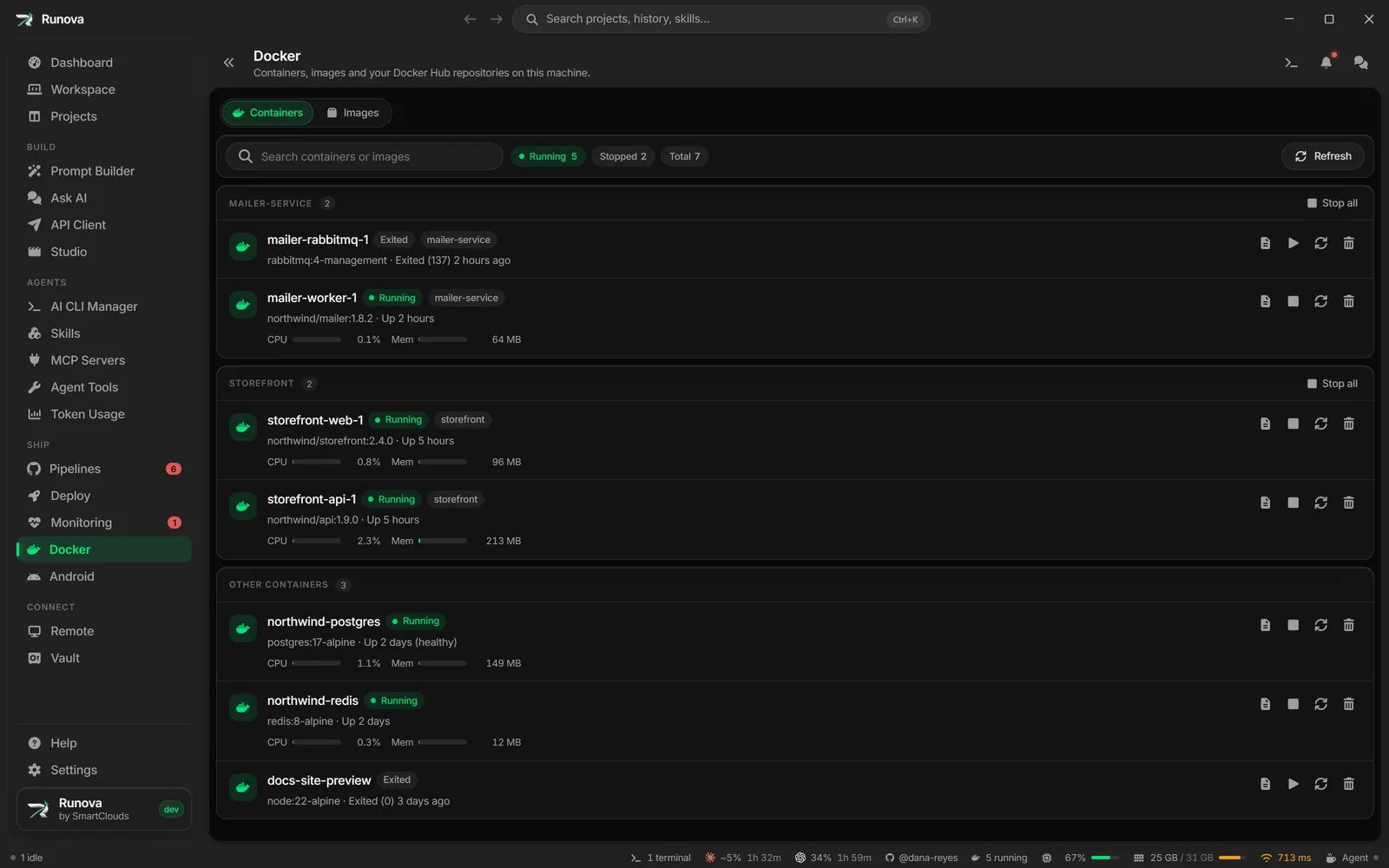
The Docker page lists every container on your own machine, whether it is running or stopped. You can start, stop, restart or remove a container with one click, see how much CPU and memory the running ones use, and stop a whole Docker Compose project at once. It talks to the docker command on your computer, so it only works when Docker is installed.
This page is for Docker on your local machine. Containers on a remote server are handled in Deploy: Containers and stacks.
Where to find it
Click Docker in the sidebar under Ship, or open the command palette and type Docker. You can also click the Docker entry in the status bar at the bottom of the window (see below), or open the Docker tab inside a project.
If Docker is not installed
If Runova cannot find the docker command on your PATH, the page shows “Docker isn’t available” with the text “Runova couldn’t find the docker command on PATH. Install Docker Desktop (or the Docker Engine CLI) and reopen this page.” Install Docker, make sure Docker is running, and open the page again.
The Docker entry in the status bar is hidden completely while Docker is not available.
The container list
At the top, three tiles show Running, Stopped and Total container counts. The Refresh button reloads the list on demand. The list also refreshes on its own every few seconds.
Each container is a card with:
- Name and a state badge: Running, Restarting, Exited, Dead, Paused or Created.
- Compose badge. If the container belongs to a Docker Compose project, the project name is shown as a small badge.
- Image and status. The image name plus Docker’s own status text (for example “Up 2 hours”).
- CPU and Mem meters. For running containers, small bars show the CPU percentage and the memory in use (in KB, MB or GB).
If you have no containers at all, the page says “No containers on this machine”.
Compose groups
Containers that were started by Docker Compose are grouped under the name of their Compose project, in alphabetical order. Containers that do not belong to a project are listed after those groups. Each group with running containers has a Stop all button, see below.
Search
Type in Search containers or images to filter by container name or image name. Click the X in the box to clear it. If nothing matches, the page says: No containers match “your text”.
Container actions
Each card has four icon buttons on the right. They are disabled while an action on that container is still running.
| Button | What it does |
|---|---|
| Stop (shown for running containers) | Asks you to confirm, then stops the container. You can start it again any time. |
| Start (shown for stopped containers) | Starts the container. |
| Restart | Restarts the container. |
| Remove | Opens the remove dialog. |
If Docker reports an error, a toast shows the message.
Stop all containers in a Compose project
- Find the Compose group heading (the project name in capital letters).
- Click Stop all on the right of the heading. The button only shows when at least one container in the group is running.
- Confirm Stop all in the dialog. A toast then says how many containers stopped, or how many failed.
Remove a container
- Click Remove on the container’s card.
- In the dialog “Remove (container name)?”, decide on the two optional checkboxes.
- Also remove the image. Removes the image too. It is skipped if another container or tag still uses that image.
- Also remove anonymous volumes. Named volumes created outside this container are kept.
- Click Remove container. Click Cancel to back out.
Warning: Removing a container stops it and deletes it for good. Anything saved only inside the container is lost.
The status bar Docker entry
When Docker is available, the status bar at the bottom shows a Docker icon with the number of running containers. Click it to open a small popover.
- The popover lists up to eight running containers with a CPU meter. If more are running, it says “and N more”.
- Click a container in the list to open the Docker page scrolled to that container. The card gets a ring around it for a few seconds so you can spot it.
- If nothing is running, it says “No containers running right now.”
- Open the Docker page at the bottom opens the full page.
If the container you were pointed to no longer exists, a toast says “That container is no longer listed.”
Docker tab in a project
Every project has its own Docker tab. It shows only the containers that were started with docker compose from that exact project folder, using the same cards and the same Start, Stop, Restart and Remove buttons. When more than one container is running, a Stop all button appears.
If the tab is empty, it says “No containers for this project”. Run docker compose up -d in the project’s folder to see them there, or use the Docker page in the sidebar to manage every container. See Projects.
When you stop a run
Stopping a project’s run ends its terminal and everything the terminal started, but it does not stop Docker containers. If the run was docker compose up -d, the containers keep running and keep using memory and CPU. So when you stop a run, Runova checks whether that project still has containers running and offers to stop them too.
The run always stops first, straight away. Docker is checked in the background, so a slow or stopped Docker never makes the Stop button wait. If the project has no containers running, or Docker is not installed, nothing more happens and you see no message about Docker.
This applies however you stop the run: the Stop button in the status bar, Shift+F5, closing the run’s tab in the terminal drawer, or ending it from the running terminals list.
If containers are still running, a dialog called Stop the Docker containers too? opens. It names the project and lists each container with its image and how long it has been up.
- Every container starts ticked, so the usual answer is one click. Untick the ones to keep running, for example a database you want to leave up. Select none and Select all appear when there is more than one container.
- Stop 2 containers (the number follows your ticks) stops the ticked containers. A toast shows progress and then says how many stopped, or how many failed.
- Keep running leaves them all as they are. Pressing
Escor closing the dialog does the same. - Tick Remember my choice to stop being asked. Stop remembers “always stop them” and Keep running remembers “never stop them”. Remembering is only available when you stop every container or keep them all, because “always” cannot mean a hand-picked few.
The dialog never takes focus onto a button, so a stray Enter or Space while you type somewhere else cannot stop anything. Press Tab to move into it.
Stopping two runs close together gives one dialog, not two.
To change the remembered choice later, open Settings, General, and use Docker containers when a run stops. It can be Ask me, Always stop them or Never stop them. With Never stop them, Runova does not even look at Docker when a run stops. See Settings.
Note: Only containers started with
docker composefrom the project’s own folder are found, the same ones the project’s Docker tab shows. A container started with plaindocker run, or a Compose setup started from a different folder with-f, is not linked to the project, so it is left alone. Stop those from the Docker page.
Tips
- The Docker page and the project Docker tab share the same cards, so what you learn in one works in the other.
- Containers that nothing has used for a while show up on the Dashboard’s Idle Docker and Emulators card, which can stop them for you. Its clock starts when Runova first sees a container, so restarting Runova starts it again. See Dashboard.
- To get a container’s logs or open a shell, use the terminal in the Workspace and run the
dockercommand there. This page covers lifecycle actions only.