
Getting started
News
The News card on the Dashboard shows technology news from runovahq.com, marks the security fixes that affect the tools installed on this computer, and can notify you about them. You choose what it shows in Settings.
Read about this part of Runova on the Everything else page.
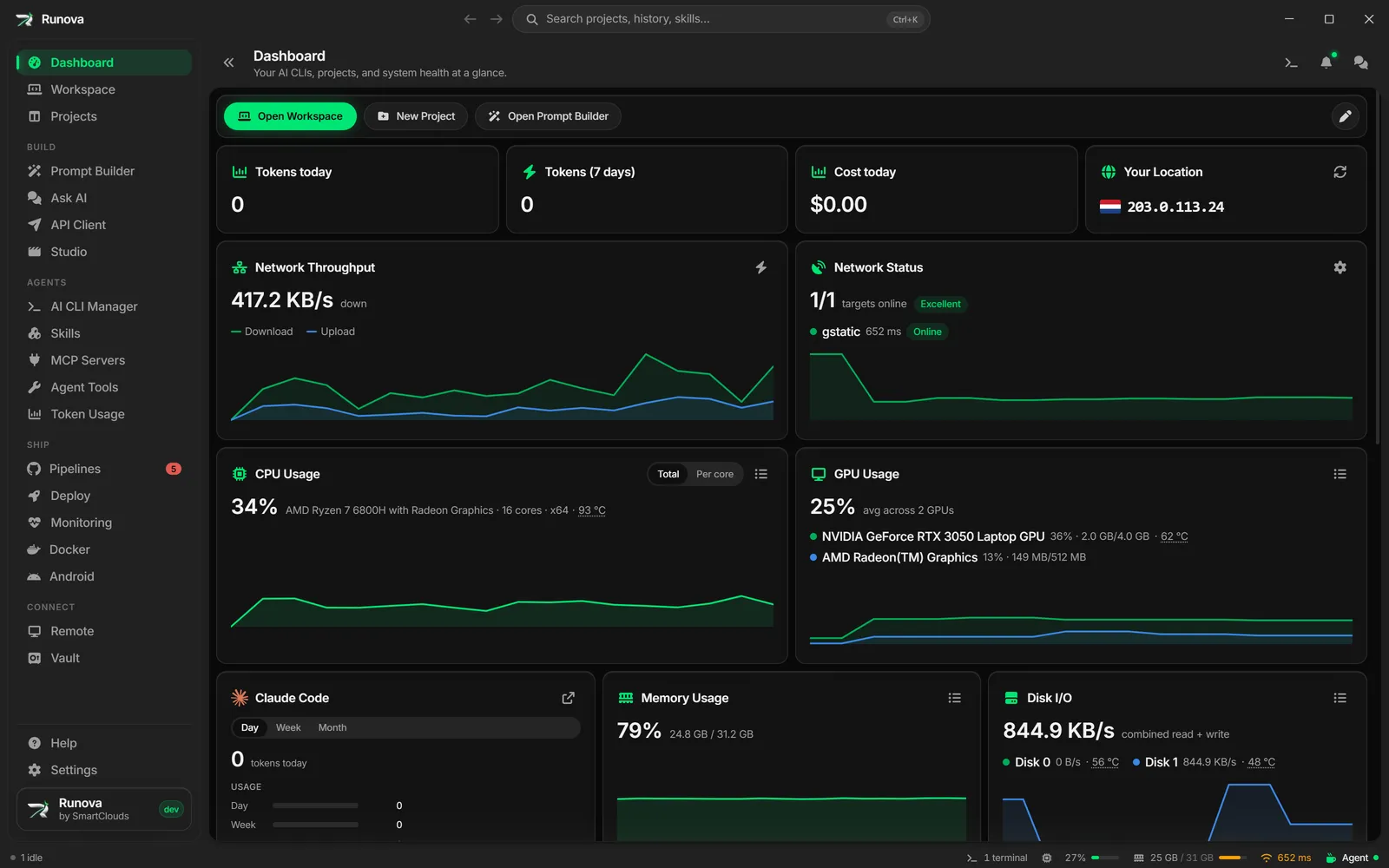
The News card on the Dashboard brings technology news from runovahq.com into Runova: security fixes, new releases, deprecations, end of life dates and news about AI tools and developer tooling. When a security fix applies to a tool that is installed on this computer, the item says so plainly and tells you which version to update to.
Where to find it
The News card is on the Dashboard, in the first row that had room for it. If you removed it, click the pencil button (Edit layout), then Add card, and pick News. You can also open the command palette (Ctrl+K) and run Open news, which opens the Dashboard with the full list. See Command palette and search.
The card
The card lists the five most important items. Items that affect your system come first, the most severe at the top, and everything else follows, newest first. Each row shows:
- A severity badge: Info, Low, Medium, High or Critical. Each has its own icon and label as well as a color.
- A category chip: Security, Release, Deprecation, End of life, AI, Tooling or Industry.
- The title and how long ago it was published. Point at the time to see the exact date.
- A dot for items you have not read yet.
Use the arrow keys to move through the list and Enter to open an item. When there are more than five items, View all at the bottom opens every item, twenty to a page, with the same filters.
Filters
The two menus in the card’s header narrow the list:
- All categories picks one or more categories.
- Any severity sets the lowest severity to show. Critical only shows just the most severe items.
The filters are remembered between launches. They only narrow what the News settings already allow.
Refresh and offline
Runova checks for news shortly after it starts and then every 30 minutes. The refresh button, Check for news now, checks right away. The last news it received is kept on this computer, so the card still works offline and shows a note such as “Offline, showing news from 2 hours ago”. If nothing has ever been received, the card says “News could not be loaded” with a Try again button.
Read an item
Click a row or press Enter to open it. The sheet shows the full story, when it was published and updated, the affected versions, any CVE numbers and links to the sources. Open on website opens the item on runovahq.com in your browser, and links inside the story open there too.
Opening an item marks it as read, and Mark as read does the same if that did not work. Read items lose their unread dot, and they stay read after you restart Runova.
Affects your system
An item gets the Affects your system badge when one of the tools it is about is installed here and your version is inside the affected range. The badge names the tool and the version you have, for example “Affects your system: Git 2.47.0”.
Runova compares against what it already knows about this computer. It runs no extra commands for the news:
- Runova itself, and the Electron and Node.js versions built into it.
- Node.js, Git, the .NET SDK and Docker, as found by Dev Setup.
- The AI CLIs found by the AI CLI Manager.
A tool that is not installed, or whose version could not be read, never matches. When the tool list changes, for example after you update a CLI, the badges are checked again.
For a security item the sheet has a What to do box, such as “Update Git to 2.47.1 or later. This machine has 2.47.0.” If no fixed version is out yet, it says so and points you to the sources.
Notifications
A security item that affects your system raises one system notification, titled for example “Security fix for Git”, and an entry in the notifications list. By default this happens for High and Critical items. Clicking the notification opens the Dashboard with the item’s sheet.
Each item notifies once at most. It does not notify again after a restart, after you read it, or when a later check returns it again. Items that do not affect your system never notify.
News settings
The News card in Settings, on the Notifications tab, controls the feature. Every change saves right away.
- Show news (on by default). Turn it off to hide the News card and the palette commands. Runova then stops checking for news altogether, and nothing notifies.
- Categories to show. All categories are shown by default. Turn categories off to keep them out of the card and the full list.
- Notify me about security fixes at. The lowest severity that notifies you: Info, Low, Medium, High (the default) or Critical. Choose Never to keep the badges but get no notifications.
The settings, the items you have read and the ones you were notified about are part of your backups, so a restore brings them back. See Backup and restore.
Privacy
Checking for news sends no personal data and nothing about the tools on this computer. The server sees an ordinary request for the latest news, like any visitor to runovahq.com. Matching items against your tools happens on this computer only. The request goes through your proxy if you set one in Settings, Network.