
Ship
Pipelines
See every GitHub Actions run across all your projects in one list, stop or copy failures, and watch your self-hosted runners.
Read about this part of Runova on the Ship page.
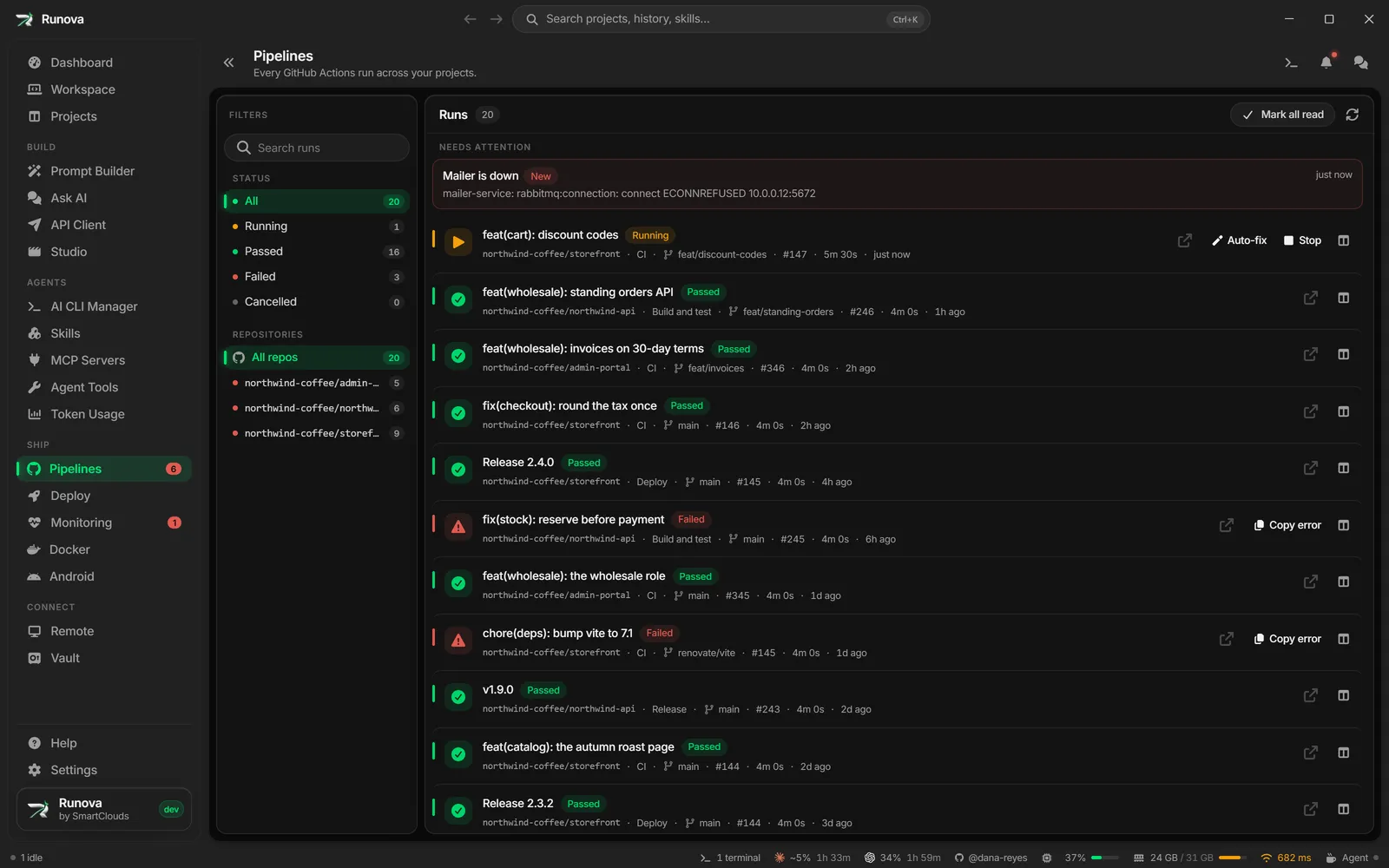
Pipelines is one page that lists the recent GitHub Actions runs of every project you have added to Runova. You can filter by status or repo, open a run on GitHub, cancel a run that is still going, and copy a failure to paste at an agent. The same page also holds your inbox of unread results, which is why the old /notifications address now redirects here.
Runova reads runs through the GitHub CLI (gh), so the page only fills up once gh is installed and signed in.
Where to find it
Click Pipelines in the sidebar under Ship, or open the command palette and type Pipelines. When there are unread failures, a red count badge appears next to Pipelines in the sidebar (and on the Ship menu when you have switched navigation to the top menu bar in Settings).
Getting started: GitHub CLI and sign-in
Pipelines shows a short hint instead of the run list until three things are true.
- The GitHub CLI is installed. If it is not, the page says “Install the GitHub CLI to see your Actions history here.” with a link to cli.github.com.
- You are signed in. If not, click the gh auth login link in the hint. Runova opens a terminal titled “GitHub login” with
gh auth loginalready typed. PressEnterin that terminal and follow the prompts. - At least one project has a GitHub remote. Otherwise the page says “Add a GitHub remote on a project and its Actions runs show up here.”
If GitHub cannot be reached (a network hiccup, DNS or a rate limit), the page says “Could not load runs from GitHub.” Hover the text to see the exact error, then click Try again.
Note: Only projects whose folder has a GitHub remote show up, and archived projects are skipped.
The run list
Each run is a card with a colored stripe on the left (red for failed, green for passed, amber for running or queued, yellow for passed with warnings, gray for the rest).
- Title and status badge. The run title (or the workflow name) and a badge: Queued, Running, Passed, Passed with warnings, Failed, Timed out, Cancelled or Skipped.
- New badge. A red New badge and a red outline mean Runova raised an unread failure notice for that run.
- Details line. The repo, workflow name, branch, run number (for example #42), how long the run took, and how long ago it was updated.
- Click the card to open the run on GitHub in your browser. If the run had an unread notice, clicking it marks that notice as read.
- Open project button (folder icon on the right). Opens the project’s Git tab. It only appears for runs that belong to a project in Runova.
At the bottom, a line such as “Showing 12 of 30 runs across 4 repos” tells you how much the filters are hiding. The list refreshes by itself about once a minute.
Filter, search and refresh
Above the list you have:
- Status tabs. All, Running (includes queued), Passed, Failed (includes timed out) and Cancelled (includes skipped and other endings). Each tab shows a count.
- Search runs. Type words and every word has to match somewhere in the run title, workflow name, repo, project name, branch or run number (for example
#42). - All repos. A dropdown to show only one repo. It can be cleared.
- Clear. Appears when any filter is active and resets all of them.
- Mark all read. Appears when you have unread notices and marks every one of them as read.
- Refresh runs (the circular arrow). Asks GitHub again for the runs and the runner status. If a refresh fails, the last list that loaded stays on screen and a small bell appears on the button. Hover the button for the reason and when the list was last saved.
If your filters hide every run, the page says “No runs match these filters” and shows how many runs were loaded.
Run actions
Stop a run
Runs that are still queued or running have a Stop button.
- Click Stop on the run card.
- Confirm Stop run in the dialog. Jobs that already finished stay as they are.
- Runova asks GitHub to cancel the run and shows “Asked GitHub to stop that run.” The card updates to Cancelled after a few seconds.
Copy the failure
Failed runs have a Copy error button. It gathers the failure details and the relevant log text from GitHub and copies them to your clipboard, ready to paste into an agent terminal. A toast confirms “Error copied to clipboard.”
Annotations
When you scroll a finished run into view, Runova looks up its annotations (the errors, warnings and notices GitHub attaches to a run). A strip under the card summarizes them, for example “2 errors · 1 warning”. Click the strip to expand the list.
- Each annotation shows its message, the job name and the file location (path and line range) when there is one.
- Copy this annotation copies a single one.
- Copy all copies every annotation of the run with a header.
A run that passed but left warnings is shown as Passed with warnings in yellow. It still counts under the Passed tab. Failed runs keep their red color whatever else they left.
Auto-fix a run
Auto-fix hands a failing run to an agent CLI and takes care of the rest: when the run fails, the agent fixes it in a workspace tab, Runova commits the fix and pushes it to the same branch, then follows the run the push starts. If that run fails too, it tries again, up to the number of tries you picked.
Switch it on
You switch auto-fix on for one run while it is still going.
- On this page, click Auto-fix on a run that is queued or running.
- In a project’s Workspace, the same button sits under a running pipeline in the Git panel’s Pipelines section, and in the pipeline’s details.
- When you start a workflow by hand with Run workflow, tick Auto-fix if it fails.
A small panel asks which agent fixes it and how many tries it gets (1 to 5), and says in one sentence what will happen. For an agent that takes a model, you can also pick the model and, once a model is picked, the effort. They start from the ones in Settings when the agent is the one picked there. Click Turn on auto-fix. The run now shows an auto-fix chip, such as Auto-fix on, Fixing 1/3, Pushing or Checking fix 1/3. Click the chip to see the session.
[!IMPORTANT] Auto-fix commits everything in the working tree, so keep the project on the run’s branch with nothing uncommitted. If it is on another branch or has changes, auto-fix stops before the agent starts and asks you to sort it out first, then press Retry.
What happens when the run fails
- Runova reads the failure from GitHub, the same text Copy error copies.
- It opens a tab in the project’s Workspace, starts the agent in a mode that edits and runs checks without asking, and submits the fix prompt. You can watch the tab and type in it at any time.
- When the agent finishes, Runova commits with a message like
fix(ci): repair CI failure from run #42 (auto-fix 1/3)and pushes the branch. If the agent already committed, that commit is pushed as it is. - Runova follows the run of the pushed commit. If it passes, you get a CI fixed message. If it fails, the next try starts.
Claude Code tells Runova exactly when it is done. For other CLIs, Runova waits until the tab has been quiet for 45 seconds, so a slow test run is not mistaken for the end. Commit & push now in the session panel skips the wait.
When it needs you
The chip turns into Needs you and a message says why, with the one action that unblocks it:
- Answer in tab when the agent asked a question. Once it carries on, so does auto-fix.
- Retry after you switched branch, committed or stashed your changes, pulled, or fixed a refused push.
- Commit & push now when Runova lost track of the agent tab, for example after a restart, and you want to keep its work.
Auto-fix gives up, and tells you, when the run still fails after the last try or when the agent finished without changing any file. Stop auto-fix ends a session at any time. The agent tab stays open and nothing more is committed or pushed. A run auto-fix took on does not raise a second failure alarm: its failure is filed as read, with “Auto-fix is on it”.
Pick the agent
Open Settings > Notifications > CI auto-fix to choose the agent CLI, its model and effort, and how many tries a run gets. Leave the agent on Each project’s CLI to use the CLI each project is set to.
Self-hosted runners panel
If your repos use self-hosted runners, a Self-hosted runners panel appears above the filters. People who only use GitHub-hosted runners never see it.
- Summary chips show how many runners are idle, busy, offline and “seen”, plus how many jobs are waiting.
- Runner tiles show the runner name, its OS and architecture, the repo or org it belongs to, its custom labels and its state. Busy runners come first, offline ones last.
- Busy. Shows the workflow and job it is running. Click it to jump to that run in the list.
- Idle and Offline.
- Live status unknown (shown as “Last job … ago”). GitHub only reports live status for organization runners to org admins, so for others Runova can only tell when the runner last ran a job.
- Waiting job alerts. When jobs are queued for a runner label that no online runner matches, a yellow alert says how many are waiting and for which labels. Click it (Show job or Show oldest) to jump to the oldest one.
- Show all and Show fewer. With more than eight runners the grid shows eight and offers a toggle.
- Hide runners (chevron button). Collapses the panel. Runova remembers your choice.
Grant org admin access
For organization runners, the panel can show “Live status for (org) runners needs org admin access.” with two buttons.
- Click Grant access. A terminal titled “GitHub org access” opens with
gh auth refresh -h github.com -s admin:orgtyped in. PressEnterand approve the new scope in your browser. You also need to be an admin of the org. - Back in Runova, click Check again to ask GitHub for the runner list again.
- Click the X on the hint to hide it for that org.
Notifications and the unread badge
Runova checks your watched workflows about every 45 seconds while the app is open. When a workflow finishes after you started watching it:
- A failed or timed out run creates an unread notice, counts toward the badge on Pipelines, and shows up as a toast message.
- A passed run creates a notice too, but it is saved as already read, so it never raises the badge.
- Notices are kept up to a limit of 200, newest first.
If you turned on the desktop pet’s pipeline messages in Settings, the pet also speaks when a run fails or passes, and clicking the pet’s bubble opens that run on this page and highlights it with a blinking ring. See Widgets and desktop pet.
You can change all of this under Settings, Notifications, Pipeline failures:
- Show failed pipelines in notifications turns the unread notice, the toast and the Recent messages row for failures on or off.
- Show failed pipelines on my AI Pet turns the pet’s failure bubble on or off.
- When I click a failure decides where a failure alert (the toast’s Open button, its row in Recent messages or the pet’s bubble) takes you: this page on the run, the Pipelines section in the project’s Workspace Git panel (see Workspace: Git), or nowhere.
Other notices land in the same inbox: updates for CLI tools and alerts from Deploy servers. Notices that have no run to attach to appear above the run list, each with a New badge. Click one to mark it read and open the page it belongs to.
Tip: To stop getting notices for one workflow, open the project’s Git tab and use Stop watching this pipeline on that workflow. Watch this pipeline again turns it back on and only reports runs from that moment on. See Workspace: Git.
Tips
- The GitHub activity card on the Dashboard shows the same runs in a smaller form.
- To see the jobs and steps of a run, open the Pipelines section in a project’s Workspace and click a pipeline. See Pipeline details.
- If a run you were pointed to is missing, it has dropped off the recent list and Runova says so in a toast.
- Pull requests, their checks and merging live in the project’s Git tab, not on this page. See Workspace: Git.